
How to Generate AI Images Locally on Mac with Flux (2026)
Learn how to generate AI images locally on your Mac with FLUX using Draw Things. Step-by-step setup, performance benchmarks, and model picks for Apple Silicon.
 Dragos17 min read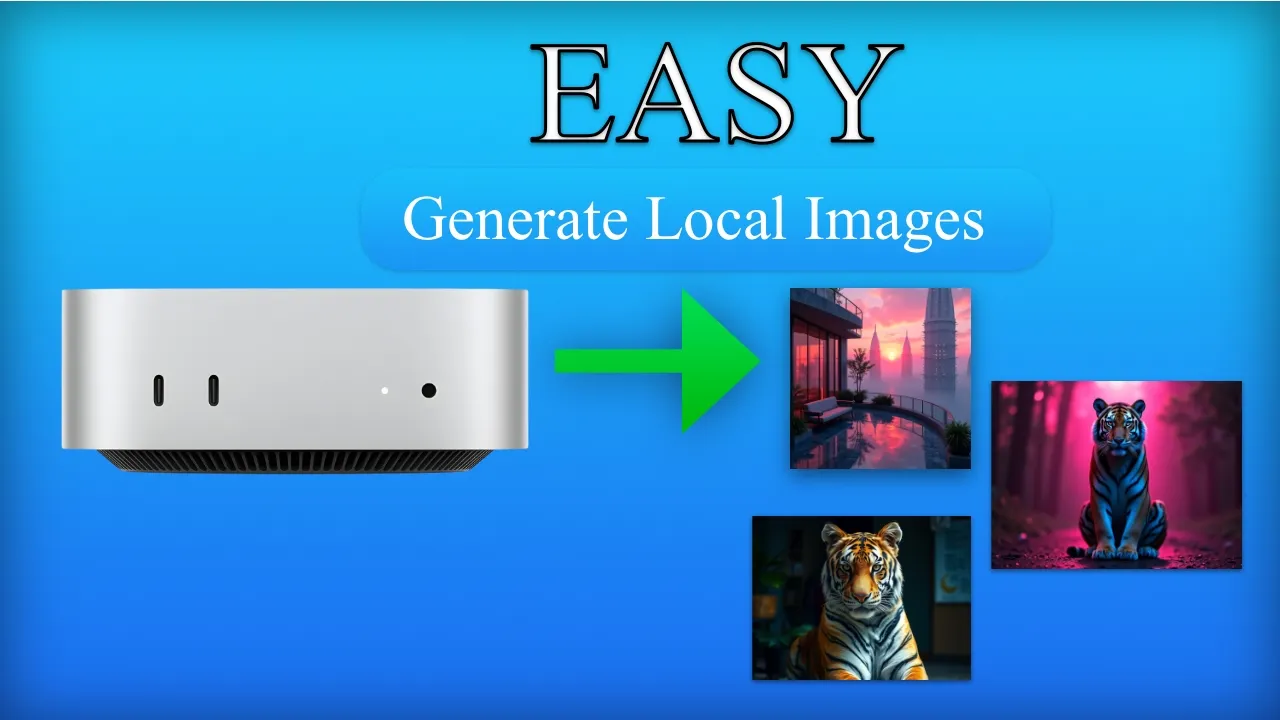
Generating AI images locally on a Mac is faster, cheaper, and more practical than ever in 2026. Apple Silicon’s unified memory architecture handles this workload well: no discrete GPU, no cloud API bills, no uploading your prompts to someone else’s server. If you’ve been running AI models locally on your Mac for text, image generation is the next thing to try.
This guide covers local AI image generation on Apple Silicon using FLUX models. The recommended tool is Draw Things, a native macOS app that’s actively maintained and much faster than the alternatives. Whether you’re on an M1 with 16GB or an M4 Max with 48GB+, there’s a workable path for your hardware.
If you’re getting started with AI and want to see what local models can do visually, this is a good place to begin.
2026 Update
This article was originally published in January 2025 using DiffusionBee as the recommended tool. DiffusionBee has been abandoned since August 2024 (last release v2.5.3). This guide has been completely rewritten with Draw Things as the primary tool, updated FLUX model information, and realistic performance benchmarks.
What is FLUX?
FLUX is a family of image generation models developed by Black Forest Labs. The original FLUX.1 models (dev and schnell) launched in 2024 and quickly became the go-to for local image generation on consumer hardware. Since then, the ecosystem has expanded:
- FLUX.1 dev. High-quality output, open weights, runs on 24GB Macs with GGUF quantization. The default recommendation.
- FLUX.1 schnell. Faster, lower quality. Good for quick drafts and iteration on 16GB Macs.
- FLUX.2 [dev]. Released November 2025. 32 billion parameters, up to 4MP output. Excellent quality but needs ~20GB VRAM at 4-bit quantization. Only practical on 48GB+ Macs.
- FLUX.2 [klein] 4B. Released January 2026. Apache 2.0 license (commercial use OK), fits in ~13GB. The best FLUX.2 option for 16-24GB Macs.
- FLUX 3. Early access as of mid-2026. Multimodal (video + audio + image). API-only, not available for local use yet.
For most Mac users in 2026, FLUX.1 dev with GGUF quantization remains the sweet spot: best quality-to-RAM ratio on 24GB machines.
- Photorealistic quality that rivals commercial APIs
- Open weights. Run everything locally, no internet required
- Active model ecosystem with regular improvements
- GGUF quantization support. Run 24GB models on 16-24GB Macs
- Multiple license tiers. FLUX.2 [klein] 4B is Apache 2.0 for commercial use
These are open-source AI models with real community backing. The FLUX inference repo on GitHub has over 25,000 stars and active development from Black Forest Labs.
Why Draw Things (Not DiffusionBee)
DiffusionBee Is Abandoned
DiffusionBee’s last release was v2.5.3 on August 14, 2024, with no updates since. The project has no GGUF quantization support, no FLUX.2 support, and users report incomplete FLUX.1 features. Do not use it for new setups.
Draw Things is a native Apple Silicon app built with SwiftUI and a custom inference engine (s4nnc). It’s not a Python wrapper. It’s a real macOS application distributed through the App Store with automatic updates.
Why it’s the recommendation:
- Native SwiftUI app. Not Electron, not Python. Runs Metal FlashAttention directly, giving 20-40% faster generation than PyTorch MPS backends.
- App Store install. One click, automatic updates, no terminal commands, no Python environment headaches.
- Broad model support. FLUX.1, FLUX.2 [dev] and [klein], SD/SDXL, Z-Image, Qwen Image, and video models.
- Actively maintained. Latest release July 17, 2026, with dozens of releases in the past year.
- Free base tier. No cost to use. Optional Draw Things+ at $8.99/mo adds cloud compute offload (useful for 8GB Macs).
- Cross-device. Same app runs on Mac, iPhone, and iPad with parameter sync via iCloud.
The speed difference is real. On an M4 Pro with 24GB RAM, DiffusionBee took about 6 minutes to generate a single FLUX.1 dev image at 704x704 with 25 steps. Draw Things generates at 1024x1024 with 20 steps in roughly 50 seconds. Higher resolution, fewer steps, 7x faster.
GGUF quantization: how FLUX runs on your Mac
FLUX.1 dev is a 12-billion parameter model. The full FP16 weights are about 24GB. That won’t fit in 24GB of unified memory alongside macOS and other apps. GGUF quantization solves this by reducing the precision of the model weights, shrinking the file size at the cost of a small quality reduction.
Here’s how the quantization levels break down:
| Quantization | File size | Quality | RAM needed | Best for |
|---|---|---|---|---|
| FP16 (original) | ~24GB | Best | 48GB+ | Maximum quality |
| Q8 | ~13GB | Near-lossless | 32GB+ | High quality |
| Q6_K | ~10GB | Best balance | 24GB | Sweet spot for M4 Pro |
| Q4_KS | ~7GB | Some loss | 16GB | 16GB Macs |
| Q2_K | ~4GB | Noticeable loss | 16GB | Emergency only |
The key insight: Q6_K at ~10GB gives you nearly the same visual quality as the full model while fitting comfortably in 24GB unified memory. You’ll see the difference in extremely fine details (text in images, tiny patterns), but for most use cases it’s indistinguishable.
Draw Things handles GGUF models automatically. You pick the quantization level from the model selector and it downloads the right file. No manual conversion needed. If you need to free up disk space on your Mac before downloading these models, do that first. Each model file is 7-13GB.
Model: FLUX.1 dev (Q6_K) File size: ~10GB Quality: Near-lossless. Best balance of speed and fidelity Generation time: ~50 seconds at 1024×1024, 20 steps (M4 Pro) RAM usage: ~7GB during generation, 50% GPU utilization
This is the sweet spot. If you have an M4 Pro or M4 Mac Studio with 24GB+, start here.
Model: FLUX.1 schnell (Q4_KS) or FLUX.2 [klein] 4B File size: ~7GB (schnell) or ~13GB (klein 4B) Quality: Noticeable quality reduction vs Q6_K, but still good for blog images and social media Generation time: ~30-45 seconds at 1024×1024 RAM usage: Tight. Close other apps before generating
FLUX.1 schnell trades quality for speed and lower RAM. FLUX.2 [klein] 4B is a newer alternative that fits in 13GB. Worth trying if you want better quality than schnell.
Model: FLUX.1 dev (FP16 or Q8) or FLUX.2 [dev] (Q4) File size: 13-24GB Quality: Best possible from FLUX models Generation time: ~30-40 seconds at 1024×1024 (FLUX.1), ~60 seconds (FLUX.2 dev) RAM usage: Comfortable headroom
You can run full-precision FLUX.1 or try FLUX.2 [dev] at 32B parameters. This is the professional tier.
Step-by-step: generate images with Draw Things
1. Install Draw Things
The easiest path is the Mac App Store:
- Open the App Store on your Mac.
- Search for “Draw Things”.
- Click Get / Install.
- Wait for the download (~200MB app, models are separate).
Alternatively, download directly from drawthings.ai/downloads.
Verify: Draw Things appears in your Applications folder and launches without errors.
2. Download a FLUX model
- Open Draw Things.
- Click the model selector at the top of the screen.
- Scroll to the FLUX section.
- Choose your model:
- 24GB Mac: Select “FLUX.1 dev” with Q6_K quantization
- 16GB Mac: Select “FLUX.1 schnell” with Q4_KS quantization
- Click download and wait. The Q6_K model is ~10GB — this takes a few minutes depending on your connection.
Verify: The model name appears in the selector, and disk usage increases by the expected file size. You can check with du -sh ~/Library/Containers/com.liuliu.draw-things/ in Terminal if you want to confirm.
3. Write your prompt and generate
- Enter your prompt in the text field at the bottom of the screen.
- Recommended starting settings:
- Steps: 20
- Sampler: Euler
- Resolution: 1024×1024
- Guidance scale: 3.5 (default for FLUX)
- Click Generate.
Verify: An image appears in under 2 minutes on a 24GB Mac. On M4 Pro hardware with Q6_K, expect ~50 seconds. GPU activity will be visible in Activity Monitor under the GPU tab.
Verify it works
After your first generation, confirm three things: the image renders without visual corruption, generation time is under 2 minutes on 24GB Mac hardware, and you can see GPU usage in Activity Monitor during generation. If any of these fail, check the Troubleshooting section below.
4. Adjust settings for quality vs speed
Once you’ve confirmed the basic workflow works, tune for your needs:
- Fewer steps (10–15): Faster generation, slightly lower quality. Good for quick iterations and prompt testing.
- More steps (25–30): Slower, marginal quality gain. Not worth it for most images.
- Resolution tradeoffs: 768×768 for speed, 1024×1024 for quality, 1280×1280 if your RAM allows.
- Seed: Lock a seed to reproduce good results with prompt tweaks.
The default settings (20 steps, Euler, 1024×1024) are a good baseline. Adjust one variable at a time so you know what changed.
Alternative: ComfyUI for power users
ComfyUI is overkill for most users. Start with Draw Things. Move to ComfyUI when you need custom workflows, batch processing, or models that Draw Things doesn’t support. If you just want to generate images from text prompts, Draw Things is the better experience on Mac.
ComfyUI is a node-based workflow engine that gives you maximum control over the image generation pipeline. It’s the tool of choice for people who build custom workflows — chaining models, applying ControlNet, doing inpainting pipelines, or batch processing hundreds of images.
Installation options:
# Install prerequisites
brew install python@3.11 git
# Clone ComfyUI
git clone https://github.com/comfyanonymous/ComfyUI.git
cd ComfyUI
python3.11 -m venv venv
source venv/bin/activate
pip install -r requirements.txt
After installation:
- Launch ComfyUI from your Applications folder.
- Go to Settings → GPU Backend and select MPS (not CPU. This is critical for Apple Silicon performance).
- Install the ComfyUI-GGUF plugin for quantized model support.
- Install ComfyUI Manager for easy node management.
- Download a GGUF model file (e.g., FLUX.1 dev Q6_K from HuggingFace).
- Download the official macOS DMG from download.comfy.org.
- Open the DMG and drag ComfyUI to Applications.
- Launch and select MPS as GPU backend in Settings.
- Install the ComfyUI-GGUF plugin and ComfyUI Manager.
- Download a GGUF model file.
ComfyUI has the broadest model support of any local tool — FLUX.1, FLUX.2, SD series, and more. The tradeoff is a steep learning curve. If you want to integrate AI image generation into automated workflows, ComfyUI’s API and node system make that possible.
Which FLUX model should you use?
With multiple FLUX model generations available, choosing the right one depends on your hardware and use case.
FLUX.1 dev — Best quality for 24GB Macs
- Parameters: 12B
- RAM needed: 24GB (with Q6_K GGUF)
- Quantization options: Q2_K through FP16
- License: FLUX Non-Commercial License (personal use OK, commercial use requires separate license)
- Quality: Best-in-class for the RAM requirement. Photorealistic output, good text rendering.
- Best for: Daily image generation on M4 Pro 24GB or similar. The default recommendation.
- Generation time: ~50 seconds at 1024×1024, 20 steps on M4 Pro (Draw Things)
FLUX.1 schnell — Fast drafts on 16GB Macs
- Parameters: 12B (distilled)
- RAM needed: 16GB (with Q4_KS GGUF)
- Quantization options: Q4_KS, Q2_K
- License: Apache 2.0 (commercial use OK)
- Quality: Noticeably lower than dev, but fast. Good enough for blog images and social media.
- Best for: Quick iterations, prompt testing, 16GB Macs that can’t run dev comfortably.
- Generation time: ~30 seconds at 1024×1024
FLUX.2 [klein] 4B — New practical option for 16–24GB
- Parameters: 4B
- RAM needed: 16–24GB (~13GB file)
- Quantization options: GGUF variants available
- License: Apache 2.0 (commercial use OK)
- Quality: Lower than FLUX.1 dev, but much faster. Good for interactive use and prototyping.
- Best for: Users who want FLUX.2 features (multi-reference input, HEX color support) without 48GB RAM. Released January 2026.
- Generation time: Sub-second to a few seconds on capable hardware
FLUX.2 [dev] — Professional, 48GB+ only
- Parameters: 32B
- RAM needed: 48GB+ (~20GB at 4-bit quantization)
- Quantization options: Q4 and above
- License: FLUX Non-Commercial License
- Quality: Excellent. Supports up to 4MP output, multi-reference (up to 10 images), HEX color control.
- Best for: Professional work on M4 Max or M4 Ultra with 48GB+ unified memory.
- Generation time: ~60 seconds at 1024×1024 on M4 Max
FLUX 3 — Not yet available locally
- Status: Early access (mid-2026), API-only
- Capabilities: Multimodal — video, audio, and image generation in one model. Self-Flow architecture.
- Local availability: Not yet. Will likely need significant hardware when it lands.
If you need FLUX-level quality without buying a 48GB Mac, cloud-based AI image APIs like Kie.ai offer access to the latest models without hardware constraints. Check the Kie.ai review for pricing details.
Performance benchmarks: what to expect
All numbers below are from community reports on M4 Pro 24GB hardware. Your results will vary based on quantization, resolution, steps, and what else is running on your Mac.
| Tool | Model | Resolution | Steps | Time |
|---|---|---|---|---|
| Draw Things | FLUX.1 dev (Q6_K) | 1024×1024 | 20 | ~50 seconds |
| ComfyUI (MPS) | FLUX.1 dev (Q6_K) | 1024×1024 | 20 | ~50–90 seconds |
| DiffusionBee (old) | FLUX.1 dev | 704×704 | 25 | ~6 minutes |
The 7x speed improvement from DiffusionBee to Draw Things is primarily due to Metal FlashAttention — Draw Things’ proprietary Apple Silicon optimization that bypasses PyTorch’s MPS backend. Draw Things also generates at a higher resolution (1024×1024 vs 704×704) in less time.
These benchmark numbers are from community reports. Generation speed depends on your specific Mac, the model quantization, resolution, number of steps, and background processes. Close Chrome and other heavy apps before benchmarking — they compete for the same unified memory.
M5 Macs with Neural Accelerators should see further improvements. Draw Things explicitly optimizes for M5 hardware with Metal FlashAttention v2.5.
Hardware recommendations by Mac model
Not every Mac can run every model. Here’s what to expect:
| Mac config | SD 1.5 | SDXL | FLUX.1 | FLUX.2 | Notes |
|---|---|---|---|---|---|
| M1 / 8GB | ✅ | 🟡 Slow | ❌ | ❌ | Basic experimentation only |
| M2 / 16GB | ✅ | ✅ | 🟡 (Q4_KS) | ❌ | Light use, blog images |
| M4 Pro / 24GB | ✅ | ✅ | ✅ (Q6_K) | 🟡 (klein 4B) | Daily creation — sweet spot |
| M4 Max / 48GB+ | ✅ | ✅ | ✅ (FP16) | ✅ (dev Q4) | Professional tier |
| M5 / any RAM | ✅ | ✅ | ✅ | ✅ | Latest hardware, best performance |
- Apple Silicon Mac (M1 or newer) — Intel Macs won’t work well
- 16GB+ RAM minimum for FLUX — 24GB recommended for comfortable generation
- macOS 13 Ventura or newer
- ~15GB free disk space for model + app (Q6_K model is ~10GB)
- SSD strongly recommended — model loading from external HDD is painfully slow
If you’re considering a Mac Mini specifically as an AI workstation, it’s one of the best value options for local inference. See the best mini PC for home server roundup for a full comparison — the Mac Mini M4 punches well above its price for AI workloads.
The M4 Mac Studio (released March 2025) scales up to M4 Max with 128GB unified memory, which is overkill for image generation but useful if you also run large language models locally.
Troubleshooting common issues
Generation takes extremely long (1 hour+ per image)
Cause: The most common culprit is the GPU backend not being used. On ComfyUI, this means MPS isn’t selected — the model falls back to CPU inference, which is 50–100x slower.
Fix:
- In ComfyUI, verify Settings → GPU Backend → MPS is selected.
- In Draw Things, this is handled automatically — if you see extreme slowness, restart the app.
- Open Activity Monitor → CPU tab. If CPU usage is maxed out during generation (instead of GPU), the model is running on CPU.
Verify: During generation, Activity Monitor should show significant GPU utilization. CPU usage should be moderate, not maxed.
App crashes when loading a model
Cause: Insufficient RAM. The model needs to fit in unified memory alongside macOS and other apps. Chrome alone can consume 4–8GB.
Fix:
- Close all unnecessary applications before loading a model — especially Chrome, Electron apps, and anything with a large memory footprint.
- Open Activity Monitor → Memory tab. Check “Memory Pressure.” If it’s yellow or red, you don’t have enough free RAM.
- Switch to a smaller quantization: if Q6_K crashes, try Q4_KS. If Q4_KS crashes, try FLUX.1 schnell instead of dev.
Verify: Model loads without error and memory pressure stays green in Activity Monitor.
Black or corrupted output image
Cause: Sampler/model mismatch. Some samplers don’t work well with FLUX models.
Fix:
- Stick to Euler or DPM++ samplers for FLUX. Avoid exotic samplers like DDIM or LMS.
- Reset settings to defaults if you’ve been experimenting.
- If using ComfyUI, make sure your workflow connects the VAE correctly — a missing or wrong VAE produces garbage output.
Verify: Regenerate with Euler sampler, 20 steps, default guidance scale. Output should be a coherent image.
Model download fails or is very slow
Cause: Model files are large (7–13GB). Unstable connections or disk space issues can interrupt downloads.
Fix:
- Draw Things handles downloads automatically with resume support — just retry.
- Check available disk space first. You need at least as much free space as the model file size.
- For manual downloads (ComfyUI), use a download manager or
curl -C -to resume interrupted downloads. - If you’re on a slow connection, consider downloading FLUX.1 schnell (smaller) first to verify the workflow, then download the larger model overnight.
Verify: Model file exists on disk and matches expected size. In Draw Things, the model appears in the selector with a checkmark.
Cost comparison: local vs cloud
Generating images locally is essentially free after the hardware cost. Here’s how the economics break down:
| Approach | Cost | Per-image cost | Notes |
|---|---|---|---|
| Draw Things (local) | Free | $0 (electricity negligible) | Base tier is free, no API keys needed |
| Draw Things+ (cloud offload) | $8.99/mo | Included | Useful for 8GB Macs that can’t run models locally |
| ComfyUI (local) | Free | $0 | Open source, no account needed |
| Black Forest Labs API | Pay per use | $0.014–$0.07/image | For FLUX.2 [pro], [klein], [max] via API |
The breakeven is fast. If a cloud API charges $0.03/image, you’d spend $15 for 500 images. Draw Things generates those same 500 images for free on hardware you already own. If you generate images weekly, local is the clear winner.
The case for cloud: if you need FLUX.2 [dev] (32B params) or FLUX 3 and you don’t have 48GB+ RAM, cloud AI image APIs like Kie.ai give you access without buying new hardware. The Kie.ai review covers pricing and capabilities in detail.
After roughly 500 images, local generation pays for itself vs cloud API pricing. If you generate images even casually — blog posts, social media, creative projects — local is the way to go.
Tips for optimal performance
- Close Chrome before generating. It’s the single biggest memory hog on most Macs. Safari uses less RAM if you need a browser open.
- Use 20 steps for normal images, 10–15 for drafts. Going above 25 steps adds time with minimal quality gain on FLUX models.
- Keep models on your internal SSD. Loading models from external drives or network storage adds significant delay.
- Try FLUX.1 schnell for quick iterations. It’s faster than dev — use it to nail your prompt, then switch to dev for the final render.
- Monitor RAM pressure in Activity Monitor. If you see yellow or red memory pressure during generation, close more apps or use a smaller quantization.
- Batch similar prompts together. The model stays loaded in memory between generations in Draw Things, so consecutive images are faster than the first.
- Restart Draw Things if generation gets slow over time. Memory fragmentation can degrade performance after extended sessions.
Conclusion
Generating AI images locally on Mac in 2026 is a solved problem. Draw Things gives you a one-click install from the App Store, automatic model management, and generation speeds that would have been unthinkable two years ago. FLUX.1 dev with GGUF quantization hits the quality sweet spot on 24GB Macs, and the model ecosystem keeps expanding.
Start with Draw Things. It’s free, it’s fast, and it handles the complexity for you. If you eventually need custom workflows or batch processing, ComfyUI is the upgrade path — but most people won’t outgrow Draw Things.
For models that need more RAM than you have — FLUX.2 [dev] at 32B parameters, or FLUX 3 when it becomes available — cloud AI generation with Kie.ai is a practical fallback. But for everyday image generation, local is cheaper, faster (no network round-trip), and private.
If you’re also interested in running AI models locally for text generation, the same Apple Silicon hardware that handles FLUX will run local LLMs through Ollama. Your Mac is a surprisingly capable AI workstation — you just need to point the right tools at it.
Get Draw Things on the App Store