
How to Add a Custom Domain to Carrd (Step-by-Step Guide)
Learn how to connect a custom domain to Carrd.co step by step. Covers DNS records, Cloudflare setup, SSL, troubleshooting tips, and Carrd Pro plans.
 Dragos13 min read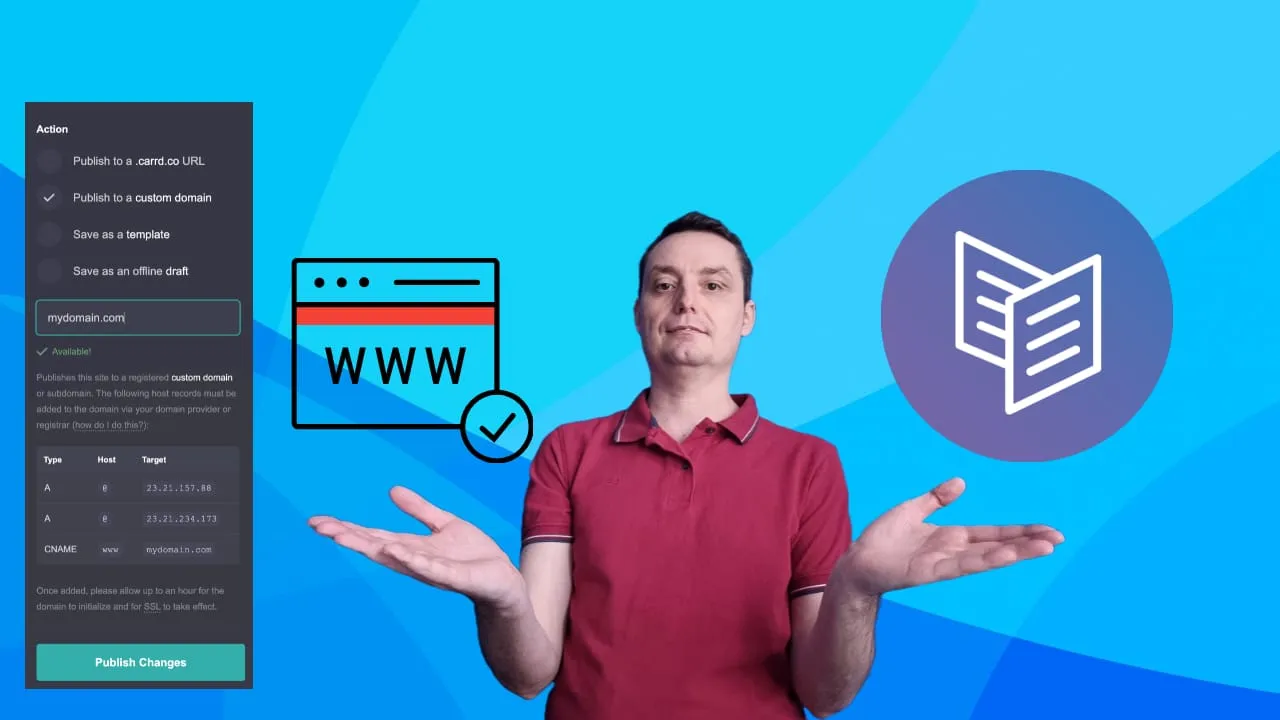
If you want to know how to add a custom domain to Carrd, you’re in the right place. Carrd.co is one of the best tools for building a one-page website on a budget. It’s fast, cheap, and dead simple to use. But the default yourname.carrd.co URL doesn’t exactly scream professionalism.
A custom domain fixes that. It makes your site look legitimate, helps with brand recall, and gives you better control over SEO. The whole setup takes about 10 minutes once you have a domain name.
You need at least the Pro Standard plan ($19/year) to connect a custom domain. Carrd also offers a 7-day free Pro trial with no credit card required, so you can test the full workflow before committing. If you’re still evaluating Carrd, check out our Carrd.co review for a full breakdown of what you get at each plan level.
Key takeaways
- You need a Pro Standard ($19/year) or Pro Plus ($49/year) plan. Pro Lite does NOT support custom domains
- Register a domain from Cloudflare, Namecheap, or Porkbun (Carrd’s officially recommended providers)
- Carrd shows your specific IP addresses in the Publish settings. Copy them from there, not from blog posts
- Add two A records for @ and one CNAME record for www in your DNS settings
- Carrd automatically provides SSL via Let’s Encrypt. No Cloudflare SSL configuration needed
- If using Cloudflare for DNS, keep records set to DNS Only (grey cloud), not proxied
Some Carrd tutorials you might find useful:
- Add Sticky Header to Carrd
- Add Cookie Notice to Carrd
- How to Add Pricing Table to Carrd
- How to Add Accordion FAQs to Carrd
- Carrd Mobile Responsive Navbar
- Add Dark Mode Toggle to Carrd
- Back to Top Button on Carrd
- Add Smooth Scroll to Carrd
- Carrd.co Review
The complete list of Carrd plugins, themes, and tutorials is on carrdme.com.
How to register a domain name for your Carrd site
The first step is getting a domain name, the address people type into their browser to reach your site, like example.com. Carrd doesn’t sell domains, so you need to register one with a domain provider.
Carrd’s official docs recommend three providers: Cloudflare, Namecheap, and Porkbun. Here’s how they compare:
- Cloudflare sells domains at wholesale cost, no markup. If you’re already using Cloudflare for DNS or CDN, it’s the obvious choice. The downside: the domain management UI is minimal.
- Namecheap runs frequent sales and has a polished dashboard. Renewal prices are higher than registration prices, which is standard for most registrars.
- Porkbun has become a community favorite for transparent pricing. What you pay to register is what you pay to renew. They also include free WHOIS privacy.
Try Before You Buy
Carrd offers a 7-day free Pro trial with no credit card required. It includes custom domain support, so you can test the full setup before paying for a plan.
Tips for choosing a domain name:
- Keep it short and memorable. Avoid hyphens and numbers
- Pick an extension that fits your audience:
.comfor general use,.iofor tech,.cofor startups - Check availability using your registrar’s search tool
- Avoid trademarked names or anything too close to existing brands
For more guidance, here are some tips on choosing a domain name.
Step 2: Configure DNS records for your custom domain
This is where most people get stuck, but it’s straightforward once you understand what’s happening.
When someone types your domain into their browser, the browser asks DNS (Domain Name System) where to find your site. DNS looks up your records and tells the browser which server to connect to. For Carrd, you need to set up records that point your domain to Carrd’s servers.
Here’s what the flow looks like:
User's Browser
    ↓ types domain.com
DNS Resolver
    ↓ looks up A records
Carrd Server (IP from Publish settings)
    ↓ serves the site
Browser displays Carrd site
You need three DNS records total:
- Two A records for
@(your root domain), each pointing to one of the two IP addresses Carrd assigns to your site - One CNAME record for
www, pointing to@(your root domain)
Don't copy IP addresses from the internet
Carrd assigns IP addresses dynamically per site. The IPs in this article or any other blog post may not be correct for your site. Always copy the IP addresses from your own Carrd Publish settings (covered in Step 3 below). Using outdated or wrong IPs will cause errors.
Remove AAAA records
If your domain has any AAAA (IPv6) records for @, remove them. Carrd doesn’t use IPv6, and these records can cause connection issues or slow loading.
The exact steps depend on your domain provider. Choose your provider below:
Cloudflare is the best option if you want free DNS management with fast propagation. It’s what most Bitdoze readers use.
Steps:
- Log in to your Cloudflare dashboard and select your domain.
- Go to DNS → Records.
- Click Add record.
- Add the first A record:
- Type: A
- Name:
@ - IPv4 address: (paste the first IP from your Carrd Publish settings)
- Proxy status: DNS Only (grey cloud). This is critical.
- TTL: Auto
- Click Save.
- Add the second A record:
- Type: A
- Name:
@ - IPv4 address: (paste the second IP from your Carrd Publish settings)
- Proxy status: DNS Only (grey cloud)
- TTL: Auto
- Click Save.
- Add the CNAME record:
- Type: CNAME
- Name:
www - Target:
@ - Proxy status: DNS Only (grey cloud)
- TTL: Auto
- Click Save.
Cloudflare users: disable proxy
Carrd runs on Cloudflare’s infrastructure. If you enable the proxy (orange cloud) on your DNS records, you’re proxying through Cloudflare twice. This causes Error 1000, redirect loops, or the site not loading at all. Keep all Carrd-related records set to DNS Only (grey cloud).
If you absolutely need to proxy through Cloudflare, go to SSL/TLS → set encryption mode to Full (Strict) to avoid redirect loops. But DNS Only is the safer option.
Namecheap has a straightforward DNS editor. The interface is a bit dated, but it works fine.
Steps:
- Log in to your Namecheap account.
- Go to Domain List and click Manage next to your domain.
- Select the Advanced DNS tab.
- Add the first A record:
- Type: A Record
- Host:
@ - Value: (paste the first IP from your Carrd Publish settings)
- TTL: Automatic
- Add the second A record:
- Type: A Record
- Host:
@ - Value: (paste the second IP from your Carrd Publish settings)
- TTL: Automatic
- Add the CNAME record:
- Type: CNAME Record
- Host:
www - Value: (your domain name, e.g.,
example.com) - TTL: Automatic
- Click the green checkmark to save all changes.
DNS changes on Namecheap usually propagate within a few minutes but can take up to 30 minutes.
Porkbun’s DNS editor is clean and easy to navigate. This is a newer recommendation from Carrd.
Steps:
- Log in to your Porkbun account.
- Go to Domain List and click the gear icon next to your domain.
- Click Edit DNS Records.
- Add the first A record:
- Type: A
- Host: (leave blank or enter
@) - Answer: (paste the first IP from your Carrd Publish settings)
- TTL: 600 (default is fine)
- Add the second A record:
- Type: A
- Host: (leave blank or enter
@) - Answer: (paste the second IP from your Carrd Publish settings)
- TTL: 600
- Add the CNAME record:
- Type: CNAME
- Host:
www - Answer: (your domain name, e.g.,
example.com) - TTL: 600
- Click Submit to save.
Porkbun’s DNS propagation is usually fast, under 10 minutes in most cases.
Step 3: Publish your Carrd site with a custom domain
Now that your DNS records are set, you need to tell Carrd which domain to use.
Here’s how:
- Open your site in the Carrd editor (or go to your Carrd dashboard and click the site).
- Click the Publish icon (the arrow icon in the top toolbar).
- Under Publishing, set the action to Publish to a custom domain.
- Enter your domain name. Use
domain.ext(e.g.,example.com). Carrd automatically redirects between the root domain andwww, so it doesn’t matter which one you enter. - Scroll down to the Host records section. This is where you find the IP addresses for your A records. Copy them from here if you haven’t already.
- Click Publish Changes.
- Wait for Carrd to initialize your domain. This usually takes a few minutes but can take up to 1 hour.

Once initialization is complete, your site will be live on your custom domain.
Try Carrd Free for 7 DaysSSL is automatic
You don’t need to configure SSL separately. Carrd automatically issues a free SSL certificate via Let’s Encrypt for every custom domain. The certificate is provisioned once your DNS records are in place and have propagated.
SSL is automatic
Carrd provides a free SSL certificate via Let’s Encrypt for all custom domains. No additional configuration is needed. You do NOT need to set up Cloudflare SSL or buy a certificate. The entire process is hands-off.
If you’re using Cloudflare with the proxy enabled (not recommended, see the Cloudflare warning above), make sure your Cloudflare SSL/TLS mode is set to Full (Strict) to avoid conflicts with Carrd’s own certificate.
Carrd Pro plans: which one supports custom domains?
There are three Pro tiers, and only the higher two support custom domains. This is a common source of confusion.
| Plan | Price | Custom Domains | Sites | Key Extras |
|---|---|---|---|---|
| Pro Lite | $9/year | No | 3 | Basic Pro features |
| Pro Standard | $19/year | Yes | 10 | Custom domains, embeds, forms |
| Pro Plus | $49/year | Yes | 25 | Advanced forms (Zapier/Make/n8n/Airtable), password protection, redirects, canonical URLs, variables |
Both Pro Standard and Pro Plus allow expanding the site limit. You can get 25, 50, 100, 250, 500, or even 1,000 sites at higher price tiers.
Pro Lite won't work
You need Pro Standard ($19/year) or Pro Plus ($49/year) to use a custom domain. Pro Lite does not include this feature. If you’re on Pro Lite and try to connect a domain, the option simply won’t appear.
The 7-day free trial includes Pro Standard features, so you can test custom domains before committing. For a detailed plan comparison, see our full Carrd.co review.
Start Carrd Pro TrialTroubleshooting common Carrd custom domain issues
If your custom domain isn’t working, one of these is usually the cause.
Domain still 'initializing' after 1 hour
This is the most common issue. Here’s what to check:
- Verify your DNS records. You need exactly two A records for
@and one CNAME forwww. Missing or extra records will block initialization. - Remove conflicting records. Old A records, AAAA (IPv6) records, or domain parking/forwarding/masking services can interfere. Delete anything that isn’t the three records Carrd needs.
- Check that the IP addresses match. The IPs in your A records must match what Carrd shows in your Publish settings. Don’t use IPs from old blog posts or tutorials.
- Wait a bit longer. DNS propagation usually takes minutes but can take up to 48 hours in rare cases.
- Try a different network or clear your browser cache to rule out local caching issues.
Cloudflare Error 1000 or redirect loop
If you’re using Cloudflare and getting Error 1000 (Prohibited IP) or a redirect loop:
- Cause: Your DNS records have the proxy enabled (orange cloud). Carrd already runs on Cloudflare’s infrastructure, so proxying through Cloudflare again causes collisions.
- Fix: Set all Carrd-related A and CNAME records to DNS Only (grey cloud).
- If you need to keep the proxy enabled for some reason, go to SSL/TLS → set encryption mode to Full (Strict).
- Clear your browser cache after making the change, then test again.
'Not Secure' SSL warning
- Carrd’s Let’s Encrypt certificate may still be provisioning. Wait up to 1 hour after your DNS records propagate.
- If the warning persists after 1 hour, contact Carrd support. There may be an issue with certificate issuance.
- Make sure no Cloudflare “Flexible” SSL mode is interfering. If you’re using Cloudflare, set SSL/TLS to Full (Strict) or disable the proxy entirely.
Site only works with or without www
If your site loads at example.com but not www.example.com (or vice versa):
- You’re missing a DNS record. Verify you have both A records (for
@) and the CNAME record (forwww). - Carrd automatically redirects between
domain.extandwww.domain.ext, but both records must exist in your DNS settings for this to work. - Use a tool like DNSChecker.org to verify all three records are visible globally.
Slow loading or intermittent access
- Check for conflicting AAAA (IPv6) records. Remove them. Carrd doesn’t use IPv6.
- Disable any domain forwarding, masking, or parking services at your registrar. These can intercept requests before they reach Carrd.
- If using Cloudflare, make sure the proxy is off (DNS Only).
Frequently asked questions
Can I use a custom domain on Carrd for free?
No. You need at least Pro Standard ($19/year) to connect a custom domain. However, Carrd offers a 7-day free Pro trial with no credit card required that includes custom domain support. You can test the full setup during the trial before deciding to pay.
What DNS records do I need for a Carrd custom domain?
You need three records:
- Two A records for
@pointing to the IP addresses Carrd shows in your Publish settings - One CNAME record for
wwwpointing to@
Copy the IP addresses from your Carrd dashboard. Don’t use values from tutorials or blog posts, as they may be outdated.
Does Carrd provide SSL for custom domains?
Yes. Carrd automatically issues a free SSL certificate via Let’s Encrypt for every custom domain. No additional setup is required. The certificate is provisioned once your DNS records are in place.
Can I use Cloudflare with Carrd?
Yes, but with an important caveat: keep your DNS records set to DNS Only (grey cloud). Do NOT proxy through Cloudflare. Carrd already runs on Cloudflare’s infrastructure, and double-proxying causes Error 1000 or redirect loops.
If you must proxy, set SSL/TLS to Full (Strict) in your Cloudflare dashboard. But DNS Only is the recommended and safest configuration.
How long does it take for a Carrd custom domain to work?
Usually a few minutes. Carrd’s docs say it can take up to 1 hour. In rare cases, DNS propagation may take up to 48 hours. If it’s been more than an hour, double-check your DNS records and remove any conflicting entries.
What's the difference between Pro Lite, Pro Standard, and Pro Plus?
- Pro Lite ($9/year): 3 sites, no custom domain support
- Pro Standard ($19/year): 10 sites, custom domains, embeds, forms
- Pro Plus ($49/year): 25 sites, everything in Standard plus advanced forms (Zapier/Make/n8n/Airtable), password protection, redirects, canonical URLs, and variables
For a detailed comparison, see our full Carrd.co review.
Conclusion
Adding a custom domain to Carrd is a three-step process: register a domain, configure your DNS records, and publish through Carrd’s settings. Carrd handles SSL automatically via Let’s Encrypt, so there’s no certificate to buy or install.
The most important thing to remember: get your IP addresses from your own Carrd dashboard, not from blog posts. And if you’re using Cloudflare, keep the proxy off.
If you haven’t committed to a plan yet, start with the 7-day free Pro trial. It includes custom domain support, so you can verify everything works before paying.
Get Started with CarrdOnce your domain is live, here are some Carrd tutorials to take your site further:
- Add a sticky header to your Carrd site
- Add a cookie notice to Carrd
- Add a pricing table to Carrd
- Add an accordion FAQ to Carrd
- Create a mobile responsive navbar in Carrd
- Add a dark mode toggle to Carrd
- Add a back to top button on Carrd
- Add smooth scroll and anchor links to Carrd
For the full list of Carrd plugins, themes, and tutorials, visit carrdme.com.