How to Add a Back to Top Button on Carrd (2026 Guide)
Learn how to add a back to top button on Carrd with our step-by-step guide. Includes free copy-paste code, accessibility fixes, and Pro plan requirements.
 Dragos22 min read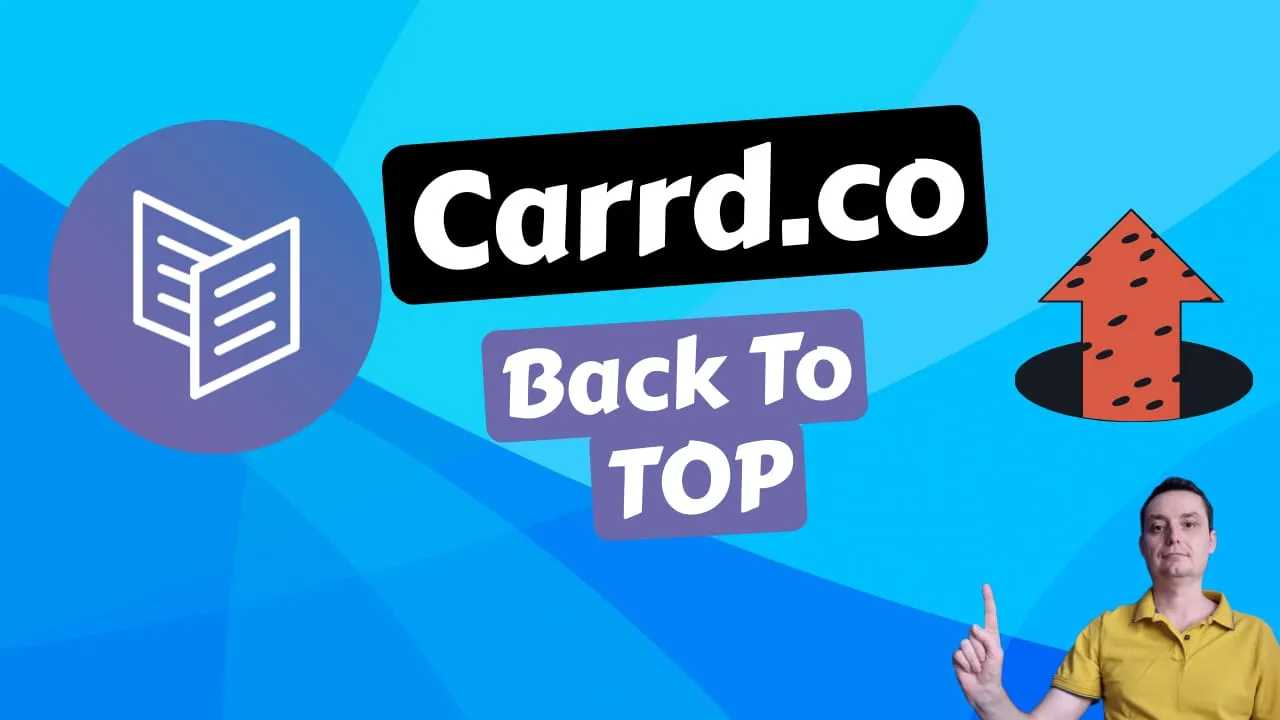
Carrd.co is a popular option to build a one-page website on a budget, but long single-page sites have a usability gap: visitors end up scrolling a lot to get back to the top. A back to top button fixes that with a single Carrd Embed element and some copy-paste code.
Try Carrd.coSome Carrd tutorials:
- Add Sticky Header Carrd
- Add Carrd Cookie Notice
- How To Add Pricing Table to Carrd.co
- Carrd.co Review
- How To Add Accordion FAQs Drop-Down to Carrd.co
- Carrd Mobile Responsive Navbar
The complete list of Carrd plugins, themes, and tutorials you can find on my carrdme.com website.
Prerequisites: what you need before you start
Requires Carrd Pro Standard
This tutorial uses the Embed element, which requires Carrd Pro Standard ($19/yr) or Pro Plus ($49/yr). Free and Pro Lite plans do not support custom code embeds. See our Carrd.co review for a full plan comparison.
Before you start, make sure you have:
- Carrd Pro Standard ($19/yr) or Pro Plus ($49/yr). The Embed element is not available on Free or Pro Lite plans. This is the most common reason the button “doesn’t work” for people following tutorials online.
- A Carrd site long enough to need it. Back to top buttons work best for pages longer than about 4 screens (per NNGroup guidelines). For short Carrd pages, the button adds visual noise for no real benefit.
The embed won’t preview in the Carrd builder. You have to publish the site to see it live.
Pair this button with a sticky header for easy navigation on long Carrd pages. Once you’re done, you can also add a custom domain to Carrd to give your site a professional look.
How to add a back to top button on Carrd (step-by-step)
1. Add an Embed element to your Carrd site
Open your Carrd site in the editor. Click the + button to add a new element and select Embed. Place it anywhere on the page. Its position in the element list doesn’t affect where the button appears (that’s controlled by CSS position: fixed).
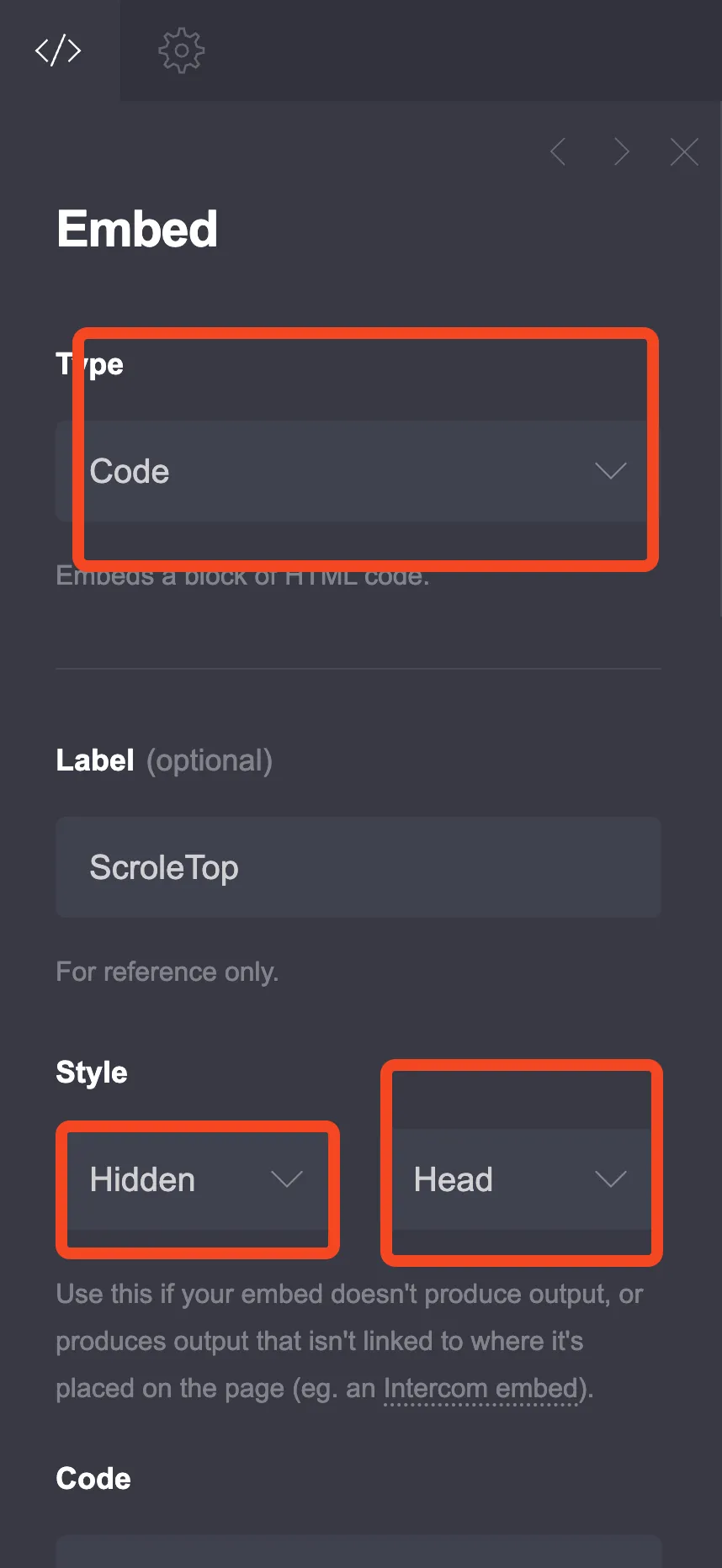
Set these options:
- Type: Code
- Style: Hidden, Head
2. Copy and paste the back to top button code
Paste this complete code into the Embed element’s code field:
<style>
  @media (prefers-reduced-motion: no-preference) {
    html {
      scroll-behavior: smooth;
    }
  }

  :root {
    --button-color: #555;
    --button-hover-color: #333;
    --arrow-color: white;
  }

  #scroll-to-top {
    display: none;
    position: fixed;
    bottom: 20px;
    right: 20px;
    z-index: 99;
    width: 50px;
    height: 50px;
    background-color: var(--button-color);
    color: var(--arrow-color);
    border: none;
    outline: none;
    cursor: pointer;
    border-radius: 50%;
  }

  #scroll-to-top::before {
    content: "\25b2";
    font-size: 24px;
    position: absolute;
    top: 50%;
    left: 50%;
    transform: translate(-50%, -50%);
  }

  #scroll-to-top:hover {
    background-color: var(--button-hover-color);
  }

  #scroll-to-top:focus-visible {
    outline: 2px solid var(--button-hover-color);
    outline-offset: 2px;
  }
</style>

<button id="scroll-to-top" aria-label="Back to Top"></button>

<script>
  const scrollToTopBtn = document.getElementById("scroll-to-top");

  function toggleButton() {
    if (document.body.scrollTop > 400 || document.documentElement.scrollTop > 400) {
      scrollToTopBtn.style.display = "block";
    } else {
      scrollToTopBtn.style.display = "none";
    }
  }

  function scrollToTop() {
    window.scrollTo({ top: 0, behavior: "smooth" });
    document.body.focus();
  }

  scrollToTopBtn.addEventListener("click", scrollToTop);

  let ticking = false;
  window.addEventListener("scroll", () => {
    if (!ticking) {
      window.requestAnimationFrame(() => {
        toggleButton();
        ticking = false;
      });
      ticking = true;
    }
  });

  toggleButton();
</script>
Embed limits
Carrd embeds have a 16,384 character limit. This code is roughly 1,200 characters, well within limits.
What changed from the original version:
prefers-reduced-motionCSS guard prevents smooth scrolling for users with motion sensitivityaria-label="Back to Top"lets screen readers identify the button:focus-visibleoutline shows keyboard users where focus lands- Replaced
window.onscrollwith throttledaddEventListenerusingrequestAnimationFrame. Fires once per frame instead of 60+ times per second. - Replaced
document.documentElement.scrollTop = 0withwindow.scrollTo({ top: 0, behavior: 'smooth' }). Modern, cross-browser. document.body.focus()after scroll moves focus to the top for keyboard users.- Scroll threshold increased from 200px to 400px. 200px triggers almost immediately on most screens.
- Removed inline
onclick. UsingaddEventListenerfor cleaner separation. - Initial
toggleButton()call on load handles pages that load mid-scroll. - Removed unnecessary
tabindex="0". The<button>element is natively focusable.
Customizing your Carrd back to top button
Change button colors with CSS variables
The code uses three CSS custom properties in the :root block. Change these to match your site’s design:
| Variable | What it controls | Default |
|---|---|---|
--button-color |
Button background color | #555 (dark gray) |
--button-hover-color |
Background on hover | #333 (darker gray) |
--arrow-color |
Arrow icon color | white |
For example, to make a blue button: set --button-color: #2563eb and --button-hover-color: #1d4ed8.
Like this button, a dark mode toggle also uses the Carrd Embed element and CSS variables for customization.
Adjust button size and position
The button is 50x50px by default, which exceeds the WCAG 2.5.5 (AAA) minimum touch target of 44x44px. To change it:
- Width & height: Edit the
widthandheightproperties in#scroll-to-top - Arrow size: Edit the
font-sizein#scroll-to-top::before - Position: Edit the
bottomandrightproperties in#scroll-to-topto control distance from the screen edges - z-index: Default is
99. If the button hides behind other Carrd elements (fixed headers, modals), try9999
Add a text label to the button
UX tip
NNGroup recommends pairing the arrow icon with a text label like “Back to Top” for better usability. This matters on mobile, where the arrow alone can be ambiguous.
To add a text label, replace the ::before pseudo-element approach with inline text. Change the button HTML to:
<button id="scroll-to-top" aria-label="Back to Top">▲ Top</button>And remove or comment out the #scroll-to-top::before CSS rule. Adjust the button width to auto and add some padding to fit the text.
Accessibility & WCAG compliance for your scroll to top button
The updated code above includes several accessibility fixes. Here’s why they matter.
Keyboard navigation and screen reader support
The button uses a native <button> element, which is focusable by default. The aria-label="Back to Top" attribute gives screen readers a description to announce instead of reading an empty button.
After the page scrolls to the top, document.body.focus() moves keyboard focus to the top of the page. Without this, keyboard users stay stuck mid-page: they scroll visually to the top but their Tab key is still in the middle of the document.
The :focus-visible outline shows keyboard users exactly where focus is, without showing a ring on mouse clicks.
Respecting reduced motion preferences
The @media (prefers-reduced-motion: no-preference) wrapper ensures that scroll-behavior: smooth only applies when the user hasn’t requested reduced motion in their OS settings. For users with motion sensitivity, the page jumps instantly to the top instead of animating. This can prevent nausea and vertigo.
Verify on your site
Carrd may inject its own scroll-related CSS. Test that the prefers-reduced-motion wrapper doesn’t conflict with Carrd’s smooth-scroll settings by enabling “Reduce motion” in your OS accessibility settings and checking that the button still works.
Verify: testing your back to top button
After publishing your Carrd site, run through this checklist:
- Open the live site in an incognito/private window (avoids builder cookies)
- Scroll past 400px. The button appears at bottom-right.
- Click the button. Smooth scroll to top.
- Test on mobile (Chrome DevTools device toolbar or real device). Confirm tappable, doesn’t overlap elements.
- Tab through the page with keyboard. Button should be reachable and activatable with Enter/Space.
- Check prefers-reduced-motion. Enable “Reduce motion” in OS settings, confirm instant jump instead of smooth scroll.
Make sure your button doesn’t conflict with your mobile responsive navbar.
Troubleshooting: common back to top button issues on Carrd
Button doesn't appear after publishing
Likely causes:
- Embed Style is not set to “Hidden” + “Head”. Double-check both settings.
- Site is not published. The embed won’t preview in the builder; you must publish.
- z-index conflict. Try increasing
z-indexto9999if Carrd elements (nav, modals) are covering the button. - Carrd’s responsive settings may hide the embed element in mobile view. Check for
display: nonein the mobile layout.
Button appears but doesn't scroll
Likely causes:
- JavaScript is blocked by a browser extension (ad blocker, NoScript)
- Safari below version 15.4 has partial support for
scroll-behavior: smooth. Thewindow.scrollTocall should still work, but test on your target browsers. - Another embed or script on the page is throwing errors that break the JavaScript on the page
Button overlaps footer content
Fix: Adjust the bottom CSS property in #scroll-to-top to increase the distance from the screen bottom, or add margin-bottom to your footer element.
Code won't save / embed limit exceeded
Fix: Carrd embeds have a 16,384 character limit. This code is roughly 1,200 characters, so it should fit fine. If you’ve added a lot of other code to the same embed, try splitting CSS and JS into separate Embed elements: CSS in one (Hidden, Head) and JS in another (Hidden, Body End).
Button works on desktop but not mobile
Likely causes:
- Carrd’s responsive settings may hide the embed element in mobile view. Check if the Embed element has
display: noneset in the mobile layout. - The button might overlap with your mobile responsive navbar or other fixed elements. Adjust the
bottomorrightvalues. - Test on a real device, not just DevTools. Some touch event behaviors differ.
Alternative methods for adding a back to top button on Carrd
Using IntersectionObserver instead of scroll events
Instead of listening to every scroll event, you can place a sentinel <div> at the top of the page and use IntersectionObserver to detect when it leaves the viewport. The button appears when the sentinel is no longer visible.
This approach is more performant (no scroll event handler), automatically adapts to screen size, and works with the browser’s compositor thread. Browser support is 97%+ globally.
Pro tip
IntersectionObserver avoids firing on every scroll pixel. Use this if your Carrd site already has heavy embeds (analytics, chat widgets) that could cause jank.
Common Ninja back to top widget (no-code alternative)
Common Ninja offers a free Back to Top Button widget that embeds via a single script tag. It handles accessibility, animations, and customization through a visual editor. Works for non-technical users who prefer not to edit code.
Carrd native Scroll Points (zero code)
Carrd has a built-in Scroll Point Control element that creates linkable page anchors. Place a Scroll Point named top at the very top of your page, then add a footer link to #top. No auto-show/hide behavior, but zero custom code required.
Third-party Carrd plugins
The Carrd plugin ecosystem is growing. Sites like carrdme.com offer plugins for tabs, accordions, and other components that extend Carrd beyond its built-in features.
Conclusion
Adding a back to top button to your Carrd site takes one Embed element and a few minutes. The code in this guide includes accessibility fixes (keyboard support, screen reader labels, reduced motion respect) that many online tutorials skip.
For a complete navigation experience, also add smooth scroll and anchor links to your Carrd site. You might also want a floating menu for additional navigation options.
Try Carrd.co