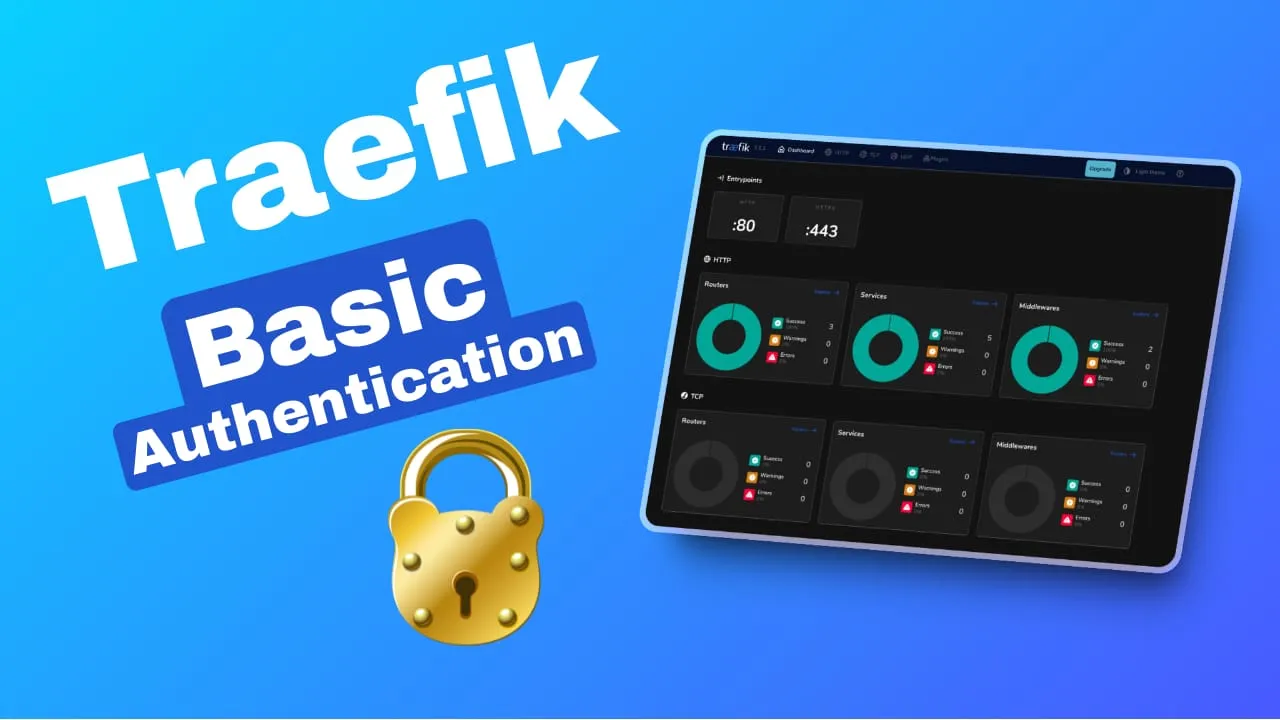
Traefik Basic Authentication: Secure Your Docker Services
Learn how to add Traefik Basic Authentication to protect your Docker services. Step-by-step guide with bcrypt hashing, Docker Compose labels, and troubleshooting tips.
 Dragos18 min read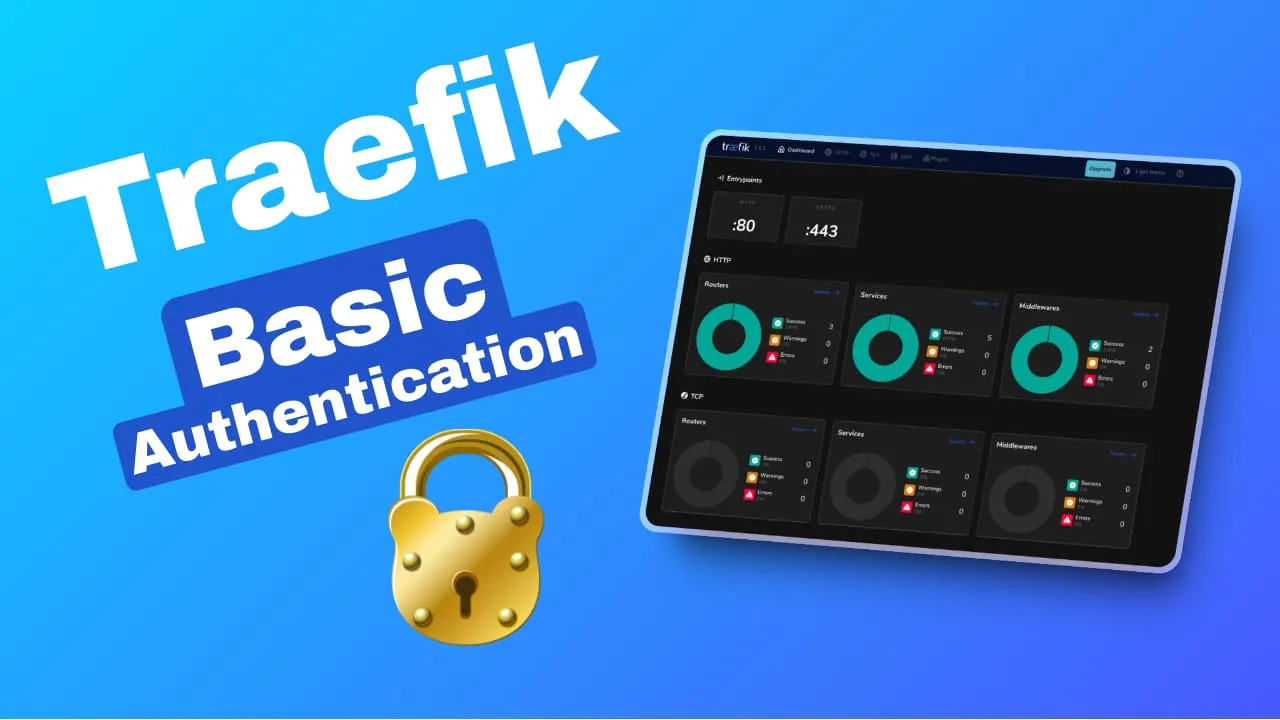
If you’re running self-hosted Docker services through Traefik, you probably have a few endpoints that don’t have their own authentication: the Traefik dashboard, a whoami container, maybe some internal dev tools. Exposing those to the internet without any access control is a risk you don’t need to take.
Traefik’s Basic Authentication middleware adds a username/password prompt in front of any service with just a couple of Docker labels. It’s not a replacement for proper app-level auth, but for dev tools and internal services it’s a quick first layer.
This guide covers the full setup: generating secure bcrypt passwords, adding auth labels in Docker Compose, using usersFile for multi-service setups, customizing the login prompt, chaining middlewares for defense in depth, and protecting the Traefik dashboard itself. Everything targets Traefik v3.x (the current stable line).
If you’re looking for more Docker containers to protect, check the best self-hosted Docker containers for home server.
Understanding Traefik basic authentication middleware
Traefik middleware sits between the client and your backend service. When a request arrives, Traefik routes it through the middleware chain before forwarding it to the backend. Basic Authentication is one of many middleware types. It intercepts the request, checks for valid credentials, and either passes the request through or returns a 401 Unauthorized response.
The flow looks like this:
- Client sends request to
https://myapp.example.com - Traefik checks middleware: finds Basic Auth middleware on this route
- No credentials? Traefik returns
401 Unauthorizedwith aWWW-Authenticateheader - Browser shows login prompt: the user enters username and password
- Client resends request with
Authorization: Basic <base64-encoded>header - Traefik verifies the hash against the configured
htpasswdentries - Valid credentials? Traefik forwards the request to the backend
- Invalid credentials? Traefik returns
401again
Basic Auth credentials are Base64-encoded, not encrypted. That means anyone intercepting the traffic (without HTTPS) can decode them trivially. Always use Basic Auth over HTTPS. You should already have TLS configured if your services are behind Traefik.
When NOT to use basic auth
If your app has its own authentication (Grafana, Portainer, Nextcloud), prefer the app’s native auth instead of double-wrapping with Traefik Basic Auth. Basic Auth is best for dev tools without built-in auth: the Traefik dashboard, whoami containers, simple internal utilities. There’s no logout mechanism. The browser caches credentials until you close the tab.
How to set up Traefik basic auth in Docker Compose
This assumes Traefik is already running in Docker with the Docker provider enabled. If you haven’t set that up yet, see the Traefik reverse proxy in Docker guide first.
Prerequisites
- Traefik v3.x running in Docker with the Docker provider enabled
- Docker Compose v2 installed
- A service already exposed via Traefik with a working HTTPS route
- A domain name with DNS pointing to your VPS
- Let’s Encrypt or Cloudflare certificates configured. See Traefik wildcard certificates
- HTTP to HTTPS redirect configured. See Traefik HTTP to HTTPS redirect
apache2-utils(Debian/Ubuntu) orhttpd-tools(RHEL/Fedora) installed forhtpasswd
Step 1: Generate bcrypt passwords with htpasswd
Use bcrypt, not MD5
The older approach used htpasswd -nb which generates APR1/MD5 hashes. These are cryptographically weak. Always use htpasswd -nB for bcrypt ($2y$ prefix). The official Traefik docs now recommend bcrypt.
Install the htpasswd utility:
# Debian/Ubuntu
sudo apt update && sudo apt install apache2-utils

# RHEL/Fedora
# sudo dnf install httpd-tools
Generate a bcrypt hash:
# The interactive prompt keeps the password out of your shell history
echo $(htpasswd -nB admin) | sed -e 's/\$/\$\$/g'
You’ll be prompted to type the password. Output looks like:
admin:$$2y$$05$$...# Fine for testing. Avoid in production, password ends up in shell history.
echo $(htpasswd -nBC 12 admin MySecurePass) | sed -e 's/\$/\$\$/g'What’s happening here:
-nB:-noutputs to stdout instead of a file,-Buses bcrypt-C 12: optional cost factor (2^12 rounds). Default is usually 5. Higher means slower but more resistant to brute force. 12 is a reasonable default for production.sed -e 's/\$/\$\$/g': doubles every$because Docker Compose interprets$VARas environment variable substitution. Without this, the hash gets mangled at startup.
When you don't need the $$ escaping
The $$ doubling is only needed inside docker-compose.yml labels. If you use a usersFile (plain text file, covered in Step 4), you write the hash with single $ because the file isn’t YAML-evaluated. Tools like Ansible’s docker_container module also don’t need the doubling. See environment variables in Docker Compose for more on this.
Step 2: Add basic auth labels to your Docker service
You need two labels per service: one to reference the middleware, and one to define it.
services:
  nginx:
    image: nginx:latest
    restart: unless-stopped
    env_file: .env
    networks:
      - traefik-net
    labels:
      - traefik.enable=true
      - traefik.http.routers.nginx.rule=Host(`nginx.example.com`)
      - traefik.http.routers.nginx.entrypoints=https
      - traefik.http.services.nginx.loadbalancer.server.port=80
      # Basic auth middleware
      - traefik.http.routers.nginx.middlewares=nginx-auth
      - traefik.http.middlewares.nginx-auth.basicauth.users=${TRAEFIK_USER_PASS}
      - traefik.http.middlewares.nginx-auth.basicauth.realm=Restricted Area
      - traefik.http.middlewares.nginx-auth.basicauth.removeheader=true
networks:
  traefik-net:
    external: true
Key points:
- Middleware name must match between the router reference (
nginx-auth) and the middleware definition (nginx-auth). This is the #1 source of “auth doesn’t work” bugs. A typo here means Traefik silently ignores the middleware. - Use unique middleware names per service. If two services use the same middleware name with different user lists, one will silently override the other.
- Quote the label values. Without quotes, YAML can choke on special characters.
Verify it works:
# Should return 401 Unauthorized
curl -I https://nginx.example.com

# Should return 200 with correct credentials
curl -I -u admin:yourpassword https://nginx.example.com
Step 3: Store credentials in an .env file
Hardcoding the hashed password directly in docker-compose.yml works, but it puts credentials into version control and makes rotation painful. Move them to a .env file instead.
Why .env over hardcoded?
Keeps credentials out of version control, makes rotation easier, and separates config from secrets. For production environments, consider Docker Compose secrets or a vault for even tighter control.
# .env (in the same directory as docker-compose.yml)
TRAEFIK_USER_PASS=admin:$$2y$$05$$KJ3RixvQ.Zabc123...rest_of_hash
Note the $$ doubling. This file is still evaluated by Docker Compose as environment variable substitution. Your docker-compose.yml references it with ${TRAEFIK_USER_PASS} as shown in Step 2.
Step 4: Using usersFile for multiple services
When you have several services sharing the same credentials, inline users labels get repetitive. The usersFile approach lets you maintain one plain-text file that Traefik reads at startup.
Create the users file:
# ./traefik-data/users.txt
# Each line is username:hash, standard htpasswd format
# NO $$ doubling needed here, this is a plain text file, not YAML
admin:$2y$05$KJ3RixvQ.Zabc123...
viewer:$2y$05$AnotherHash...
Mount it into the Traefik container (not the service container):
# In Traefik's docker-compose.yml
services:
  traefik:
    image: traefik:v3.3
    volumes:
      - ./traefik-data/users.txt:/etc/traefik/users.txt:ro
      # ... other volumes
Reference it in service labels:
# In any service's docker-compose.yml
labels:
  - traefik.http.routers.myapp.middlewares=myapp-auth
  - traefik.http.middlewares.myapp-auth.basicauth.usersfile=/etc/traefik/users.txt
  - traefik.http.middlewares.myapp-auth.basicauth.realm=My App
Mount into the Traefik container
The #1 community gotcha: usersFile must be readable by the Traefik container, not your service container. Traefik reads the file at startup. If you mount it into the wrong container, you’ll get a silent config error and auth won’t be applied.
Verify the file is mounted correctly:
docker exec traefik cat /etc/traefik/users.txtPrecedence note: If you set both users and usersFile on the same middleware, the values in users take precedence over usersFile in current Traefik v3.x. In v3.1 through v3.3, usersFile had priority — the flip happened in a later v3.x release, so the behavior depends on your version.
Step 5: Customizing the login prompt with realm
By default, the browser’s basic auth dialog shows “traefik” as the realm name. You can customize it with the realm option:
labels:
  - "traefik.http.middlewares.my-auth.basicauth.realm=My App - Restricted Access"
This is a small UX improvement, but it makes the prompt look intentional rather than default. Users see “My App - Restricted Access” instead of “traefik” in the login dialog.
Step 6: Remove the Authorization header for security
By default, Traefik forwards the Authorization header (containing the Base64-encoded credentials) to your backend service. If your backend doesn’t need it, strip it:
labels:
  - "traefik.http.middlewares.my-auth.basicauth.removeheader=true"
Why this matters: if your backend service logs request headers (and most do), you don’t want credentials sitting in those logs. Defense in depth — strip what you don’t need.
Step 7: Pass the authenticated username to backends
If your backend needs to know who authenticated, use headerField to set a custom header with the username:
labels:
  - "traefik.http.middlewares.my-auth.basicauth.headerField=X-WebAuth-User"
This sets X-WebAuth-User: <username> on proxied requests. Useful for logging, per-user behavior, or simple access control in apps that don’t have their own auth.
Chaining Traefik middlewares for defense in depth
Basic auth alone is a single layer. For services exposed to the internet, chain it with rate limiting and IP allowlisting.
Middleware chaining syntax
Use comma-separated middleware references: my-auth@docker,rate-limit@docker. Order matters. Traefik applies them left to right. Put the fastest-failing middleware first (rate limit, IP allowlist) before the more expensive ones (auth).
Basic auth + rate limiting
labels:
  - traefik.enable=true
  - traefik.http.routers.myapp.rule=Host(`myapp.example.com`)
  - traefik.http.routers.myapp.entrypoints=https
  - traefik.http.routers.myapp.middlewares=rate-limit@docker,my-auth@docker
  # Rate limiting
  - traefik.http.middlewares.rate-limit.ratelimit.average=100
  - traefik.http.middlewares.rate-limit.ratelimit.burst=50
  # Basic auth
  - traefik.http.middlewares.my-auth.basicauth.users=${TRAEFIK_USER_PASS}
  - traefik.http.middlewares.my-auth.basicauth.removeheader=true
  - traefik.http.middlewares.my-auth.basicauth.realm=My App
This limits the service to 100 requests/second average with bursts up to 50, and requires authentication.
Basic auth + IP allowlist
labels:
  - traefik.http.routers.myapp.middlewares=local-only@docker,my-auth@docker
  # Allow only private networks
  - traefik.http.middlewares.local-only.ipallowlist.sourcerange=10.0.0.0/8,192.168.0.0/16
  # Basic auth
  - traefik.http.middlewares.my-auth.basicauth.users=${TRAEFIK_USER_PASS}
Note: ipWhiteList was renamed to ipAllowList in Traefik v3. If you’re migrating from v2, update your label names.
For broader server security including CrowdSec integration, see how to secure a VPS with CrowdSec.
Protecting specific paths only
Use case: protect /admin but leave /public open. Define two routers on the same host:
labels:
  # Public router — no auth
  - traefik.http.routers.myapp.rule=Host(`myapp.example.com`)
  - traefik.http.routers.myapp.entrypoints=https
  # Admin router — with auth, higher priority
  - traefik.http.routers.myapp-admin.rule=Host(`myapp.example.com`) && PathPrefix(`/admin`)
  - traefik.http.routers.myapp-admin.entrypoints=https
  - traefik.http.routers.myapp-admin.priority=10
  - traefik.http.routers.myapp-admin.middlewares=admin-auth
  - traefik.http.middlewares.admin-auth.basicauth.users=${TRAEFIK_USER_PASS}
The more specific router (/admin) needs a higher priority value to match first. Traefik’s default priority is calculated from rule length, but explicit values are more reliable.
Protecting the Traefik dashboard with basic auth
One of the most common use cases — securing the Traefik dashboard itself. Add these labels to the Traefik container:
services:
  traefik:
    image: traefik:v3.3
    command:
      - --api.dashboard=true
      - --providers.docker=true
      # ... other args
    labels:
      - traefik.enable=true
      - traefik.http.routers.dashboard.rule=Host(`traefik.example.com`)
      - traefik.http.routers.dashboard.service=api@internal
      - traefik.http.routers.dashboard.entrypoints=https
      - traefik.http.routers.dashboard.middlewares=dashboard-auth
      - traefik.http.middlewares.dashboard-auth.basicauth.users=${TRAEFIK_DASHBOARD_USERS}
      - traefik.http.middlewares.dashboard-auth.basicauth.realm=Traefik Dashboard
      - traefik.http.middlewares.dashboard-auth.basicauth.removeheader=true
    networks:
      - traefik-net
Use a separate env variable for the dashboard credentials (TRAEFIK_DASHBOARD_USERS) — don’t share the same password across all your services.
Verify: Navigate to https://traefik.example.com in your browser. You should see a login prompt. After entering credentials, the Traefik dashboard should load.
Common issues and troubleshooting
401 Unauthorized — credentials not working
Symptom: Login prompt appears but credentials are always rejected.
Common causes:
- Hash generated with
htpasswd -nb(MD5) instead ofhtpasswd -nB(bcrypt). Regenerate with bcrypt. - Password mismatch — the hash in
.envdoesn’t match what you’re typing. $$not doubled in.envfile — Docker Compose stripped the$characters from the hash.- Wrong hash format — Traefik expects
username:hash, not just the hash.
Fix: Regenerate and verify:
# Generate a fresh bcrypt hash
echo $(htpasswd -nBC 12 admin) | sed -e 's/\$/\$\$/g'

# Test with curl (should return 200)
curl -I -u admin:yourpassword https://myapp.example.com
404 Not Found — auth prompt doesn't appear
Symptom: No login prompt, just a 404.
Common causes:
- Middleware name mismatch between the router reference and middleware definition. This is the most common error.
# WRONG — names don't match:
- "traefik.http.routers.myapp.middlewares=traefik-auth"
- "traefik.http.middlewares.traefiknas-auth.basicauth.users=..."

# RIGHT — names match exactly:
- "traefik.http.routers.myapp.middlewares=myapp-auth"
- "traefik.http.middlewares.myapp-auth.basicauth.users=..."- Labels on the wrong container — the labels must be on the service container, not the Traefik container (unless you’re configuring dashboard auth).
- The router isn’t matching the request — check
Host()rule andentrypoints.
usersFile not loading
Symptom: Auth doesn’t work when using usersFile, but works with inline users.
Cause: The file is mounted into the service container instead of the Traefik container. Traefik reads the file, not your backend.
Fix: Verify the file is readable inside Traefik:
docker exec traefik cat /etc/traefik/users.txtIf the file isn’t there, mount it in Traefik’s docker-compose.yml:
volumes:
  - ./traefik-data/users.txt:/etc/traefik/users.txt:ro
Configuration errors — middleware not applied
Symptom: Auth works on one service but not another, or middleware seems ignored.
Common causes:
- Duplicate middleware names across services — if two services define a middleware called
auth, one silently overrides the other. Use unique names:nginx-auth,grafana-auth, etc. - Labels on the wrong container — labels must be on the service that needs auth, not on a shared proxy container.
- Typos in label keys —
basicauthnotbasicAuth,usersfilenotusersFile(case-insensitive in labels but be consistent).
Verify: Check Traefik’s discovered configuration:
docker logs traefik 2>&1 | grep -i "middleware"Or check the dashboard (once you can access it) under the Middleware tab.
bcrypt hash incompatible — auth always fails
Symptom: Hash looks correct but auth always rejects.
Cause: The httpd:alpine Docker image can produce incompatible bcrypt hashes in some versions.
Fix: Generate the hash using apache2-utils on the host or a full Alpine container:
# On the host (Debian/Ubuntu)
sudo apt install apache2-utils
echo $(htpasswd -nBC 12 admin) | sed -e 's/\$/\$\$/g'

# Or via Docker
docker run --rm -it alpine:latest sh -c "apk add --no-cache apache2-utils && htpasswd -nBC 12 admin"
Quick verification checklist
After setting up auth, run these commands to confirm everything works:
# Should return 401 Unauthorized (no credentials)
curl -I https://myapp.example.com

# Should return 200 OK (with correct credentials)
curl -I -u admin:yourpassword https://myapp.example.com

# Check Traefik logs for auth-related entries
docker logs traefik 2>&1 | grep -i "authentication"
Limitations of basic authentication
Basic auth is a first layer, not a complete solution
Basic Auth has real limitations. Know them before relying on it for anything sensitive:
- No logout mechanism — the browser caches credentials until you close the tab
- No MFA support — single-factor password only
- No session management — credentials are sent on every request
- No granular permissions — it’s all-or-nothing access
- Credentials are Base64-encoded, not encrypted — without HTTPS, they’re trivially readable
For anything truly sensitive (production dashboards, user-facing apps), use a proper auth proxy like Authelia or Authentik, or the app’s native authentication. Basic Auth is a good first layer for dev tools, internal utilities, and services without their own auth.
Conclusion
Traefik’s Basic Authentication middleware is a quick way to add access control to Docker services that don’t have their own auth. With bcrypt password hashing, the usersFile approach for shared credentials, and middleware chaining with rate limiting or IP allowlisting, you get a solid first layer of protection.
Here’s what we covered:
- Generating secure bcrypt passwords with
htpasswd -nB - Adding auth labels to Docker Compose services
- Using
.envfiles andusersFilefor credential management - Customizing the login prompt with
realm - Stripping the
Authorizationheader withremoveHeader - Passing the authenticated username to backends with
headerField - Chaining middlewares for defense in depth
- Protecting the Traefik dashboard
If you’re still setting up Traefik, start with the Traefik reverse proxy in Docker guide and configure wildcard certificates. For more services to protect behind auth, see the best Docker containers for home server. If you want a managed deployment platform, check out self-hosting with Dokploy.
Need a reliable VPS to run all this on? Hetzner offers affordable VPS hosting with solid performance for self-hosted Docker stacks.