Deploy PGvector & PGadmin on Docker and Ditch Pinecone
Deploy PGvector & PGadmin on Docker Compose and run your own vector database. Self-host embeddings, skip Pinecone's $50/month minimum, and save big.
 Dragos22 min read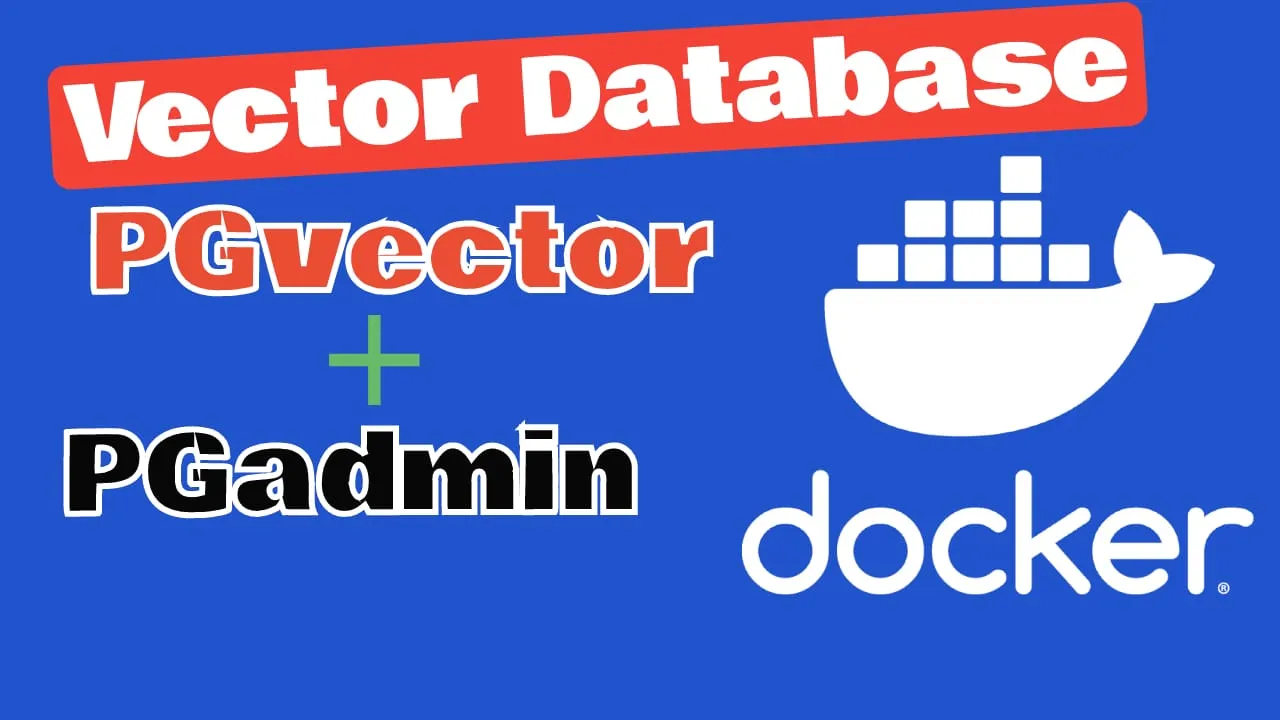
PGvector turns PostgreSQL into a self-hosted vector database. It lets you store, index, and query embeddings right inside Postgres instead of paying for a separate managed service. PGAdmin gives you a web UI to manage it. Together on Docker, you get a vector database stack running on a cheap VPS in under 10 minutes.
The original guide used the ankane/pgvector Docker image (abandoned since 2023) and an outdated Docker Compose format. This update fixes all of that: the official pgvector/pgvector:pg17 image, current Compose syntax, security improvements, and verification steps the original lacked.
If you’ve been paying for Pinecone or another managed vector database, this is the guide that lets you cancel that bill.
About the video below
The video was recorded with an older version of the stack (ankane/pgvector image, Docker Compose v1). The written guide below has the fully updated steps.
What is PGvector? PostgreSQL as a vector database
PGvector is a Postgres extension that adds vector similarity search to any PostgreSQL database. It supports exact and approximate nearest neighbor search with HNSW and IVFFlat indexing, distance operators for L2, cosine, and inner product, and up to 16,000 dimensions per vector (HNSW indexing supports up to 2,000 for full precision, 4,000 with halfvec, 64,000 with bit).
With 22,000+ GitHub stars, pgvector has become the default choice for teams that want vector search without running a separate service. The “one database for everything” argument is strong: your relational data and your embeddings live in the same Postgres instance. Same backup strategy, same access controls, same monitoring stack. No separate billing, no separate API keys.
Common use cases:
- RAG pipelines: store OpenAI or local LLM embeddings and retrieve relevant context for augmenting AI responses.
- Semantic search: find similar documents, products, or support tickets by vector distance instead of keyword matching.
- Recommendations: match users to items based on embedding similarity.
- Image/audio search: compare multimodal embeddings from CLIP or similar models.
For higher scale, TimescaleDB’s pgvectorscale extension adds StreamingDiskANN indexing on top of pgvector. Not needed for most setups, but it’s there when you outgrow basic HNSW.
PostgreSQL version support
pgvector 0.8.5 (July 2026) supports PostgreSQL 13 and later (including PG 18). PostgreSQL 12 support was dropped in pgvector 0.8.0. This guide uses the pgvector/pgvector:pg17 image, which bundles PostgreSQL 17 with pgvector 0.8.5.
Why ditch Pinecone? Updated pricing and cost comparison
The “ditch Pinecone” angle was relevant in 2024 when this article was first published. It’s gotten stronger since. In October 2025, Pinecone introduced a $50/month minimum on their Standard plan. That change effectively killed the hobby-tier use case and sent the vector database community looking for alternatives.
Pinecone’s $50/month minimum vs self-hosted pgvector
Here’s the cost math:
| Setup | Monthly Cost | What You Get |
|---|---|---|
| Pinecone Starter (free) | $0 | 2 GB storage, 1M read units/mo, 5 indexes, community support only |
| Pinecone Builder | $20/mo | Usage-capped, solo dev tier |
| Pinecone Standard | $50/mo | Production use, per-unit pricing on top: $8.25/M reads, $2.00/M writes |
| Self-hosted pgvector on Hetzner CX22 | ~€5/mo | Unlimited queries, unlimited indexes, your data on your server |
A Hetzner CX22 (2 vCPU, 4 GB RAM, 40 GB NVMe) at ~€5/month or a Hostinger VPS KVM plan handles pgvector for thousands of embeddings with no per-query charges. No usage caps. No surprise invoices. You can also check Vultr for global datacenter options.
The savings compound: Pinecone’s serverless pricing adds $0.33/GB/month for storage plus per-read/write units. At moderate traffic (10M reads/month), you’re looking at $82.50 in read charges alone on top of the base fee. pgvector on a VPS? Same flat €5–15/month regardless of query volume.
Deploy on HetznerVendor lock-in, latency, and other hidden costs
Beyond price, there’s the operational reality:
- Network latency: every vector query to Pinecone crosses the internet. A local Postgres query hits localhost. For RAG pipelines making dozens of lookups per request, that adds up fast.
- API key management: Pinecone requires API keys, rate limit awareness, and error handling for service outages. pgvector is just a Postgres connection.
- Data sovereignty: your embeddings (which often encode sensitive business knowledge) stay on your infrastructure. No third-party data processing agreements needed.
- Pricing risk: Pinecone already changed their pricing once. With self-hosted, your cost is whatever your VPS provider charges, and you can move providers anytime.
If you’re already running Docker for your app stack, you can also self-host your own infrastructure with Dokploy or use a self-hosted platform as a service like Coolify. The point is: you control the bill.
Prerequisites
Before you start, you need:
- Linux VPS with Docker support. Any provider works: Hetzner, Hostinger VPS, Vultr, DigitalOcean, or your own hardware
- Docker Engine 24+ and Docker Compose v2+ installed. Verify with
docker compose version - Basic terminal/SSH access
- (Optional) A domain or subdomain for Cloudflare Tunnel remote access
- (Optional) Dockge or another container manager for easier compose file management
No Kubernetes, no external databases, no cloud accounts needed. Docker Compose handles everything.
If you’re looking for a good VPS deal, check Hetzner for cheap EU instances or Hostinger VPS for budget global options. For more container ideas, see our guide to self-hosted Docker containers for your home server.
Environment variables (.env file)
Create a .env file next to your compose file. These credentials configure both Postgres and PGAdmin:
POSTGRES_USER=pguser
POSTGRES_PASSWORD=change-me-use-a-strong-password
POSTGRES_DB=vectors
PGADMIN_DEFAULT_EMAIL=admin@example.com
PGADMIN_DEFAULT_PASSWORD=change-me-too
Replace the placeholder passwords with real ones. The POSTGRES_* variables configure the database; the PGADMIN_* variables set your PGAdmin login.
The compose file uses ${VAR:-default} syntax, so if you miss a variable it falls back to a default value. But don’t rely on defaults for credentials. Set them explicitly.
For more on how Docker handles environment variables, see environment variables in Docker Compose.
Don't commit .env to version control
Add .env to your .gitignore. For production deployments, consider securing your Docker Compose credentials with Docker secrets or a vault.
Docker Compose file for pgvector and PGAdmin
This is the core deliverable. Copy this into docker-compose.yml (or compose.yml, both work):
Complete docker-compose.yml
services:
  db:
    image: pgvector/pgvector:pg17
    container_name: pgvector_db
    restart: unless-stopped
    shm_size: '256mb'
    ports:
      - "127.0.0.1:5432:5432"
    environment:
      POSTGRES_DB: ${POSTGRES_DB:-vector}
      POSTGRES_USER: ${POSTGRES_USER:-user}
      POSTGRES_PASSWORD: ${POSTGRES_PASSWORD}
    volumes:
      - ./local_pgdata:/var/lib/postgresql/data
    healthcheck:
      test: ["CMD-SHELL", "pg_isready -U ${POSTGRES_USER:-user} -d ${POSTGRES_DB:-vector}"]
      interval: 5s
      timeout: 5s
      retries: 5
      start_period: 10s

  pgadmin:
    image: dpage/pgadmin4:latest
    container_name: pgadmin4
    restart: unless-stopped
    ports:
      - "5016:80"
    environment:
      PGADMIN_DEFAULT_EMAIL: ${PGADMIN_DEFAULT_EMAIL}
      PGADMIN_DEFAULT_PASSWORD: ${PGADMIN_DEFAULT_PASSWORD}
    user: "${UID:-5050}:${GID:-5050}"
    volumes:
      - ./pgadmin-data:/var/lib/pgadmin
    depends_on:
      db:
        condition: service_healthy
What changed from the previous version
If you’re migrating from the old article’s compose file, here’s every change and why:
| Change | Why |
|---|---|
ankane/pgvector → pgvector/pgvector:pg17 |
The ankane/pgvector image is abandoned (last update: Oct 2023, pgvector 0.5.1). The official image moved to the pgvector Docker Hub org with pgvector 0.6.0. |
Removed version: "3.8" |
The version field is deprecated in Compose v2+ and ignored entirely. Modern compose files start with services: directly. |
Added shm_size: '256mb' |
Parallel HNSW index builds (pgvector 0.6.0+) use shared memory. Default Docker /dev/shm is 64 MB, which causes crashes during large index builds. |
Port binding 0.0.0.0:5432 → 127.0.0.1:5432 |
Don’t expose Postgres to the internet. PGAdmin connects via Docker’s internal network anyway. |
Removed POSTGRES_HOST_AUTH_METHOD=trust |
This disabled password authentication entirely. Anyone who could reach port 5432 could connect without credentials. |
Added depends_on with condition: service_healthy |
PGAdmin now waits for Postgres to be ready before starting. No more race conditions on fresh deploys. |
Added start_period: 10s to healthcheck |
Avoids false “unhealthy” reports during Postgres initialization. |
Removed hostname |
Not needed with modern Docker networking. container_name is sufficient for identification. |
docker-compose (hyphen) → docker compose (space) |
Docker Compose v1 (docker-compose with hyphen) was removed in April 2025. The command is now docker compose. |
${VAR:-default} fallbacks |
The compose file won’t break if an env var is missing. It uses sensible defaults. |
POSTGRES_HOST_AUTH_METHOD=trust was a security risk
The old compose file included POSTGRES_HOST_AUTH_METHOD=trust, which disabled password authentication entirely. Anyone who could reach port 5432 could connect without a password. The updated file removes it. If you’re migrating from the old setup, make sure POSTGRES_PASSWORD is set in your .env file and update any connection strings that relied on passwordless auth.
The ankane/pgvector image is abandoned
The ankane/pgvector Docker image hasn’t been updated since October 2023 (pgvector 0.5.1). The official image is now pgvector/pgvector on Docker Hub. Always use the official org image.
Why bind Postgres to 127.0.0.1?
By default, Docker maps published ports to 0.0.0.0. That means anyone on the internet can reach your Postgres port if no firewall is in place. Binding to 127.0.0.1 means only processes on the host machine (and other Docker containers on the same network) can connect.
This is fine because PGAdmin connects to the db service via Docker’s internal network, not through the host port. If you need remote Postgres access from another server, use an SSH tunnel or a VPN. Never expose port 5432 directly to the internet.
Deploy pgvector and PGAdmin with Docker Compose
With the compose file and .env in place, deploy:
# Pull the latest images
docker compose pull

# Start in detached mode
docker compose up -d

# Verify both containers are running
docker compose ps

# Check Postgres logs for errors
docker compose logs db

# Check PGAdmin logs
docker compose logs pgadmin
What success looks like: docker compose ps shows both pgvector_db and pgadmin4 as “Up”. The db service should show (healthy) in the status column after a few seconds.
What failure looks like: If db shows “unhealthy” or keeps restarting, check docker compose logs db. Common causes are port 5432 already in use on the host, or the data volume from a previous Postgres install with incompatible settings.
For more Docker commands and troubleshooting, see essential Docker commands.
If you are interested to monitor server resources like CPU, memory, disk space you can check: How To Monitor Server and Docker Resources
Accessing PGAdmin and connecting to pgvector
- Open your browser to
http://your-vps-ip:5016. - Log in with the
PGADMIN_DEFAULT_EMAILandPGADMIN_DEFAULT_PASSWORDfrom your.envfile. - In PGAdmin, right-click Servers in the left panel → Register → Server.
- In the General tab, give it a name (e.g., “pgvector”).
- In the Connection tab, fill in:
- Host name/address:
pgvector_db(the container name, Docker resolves it via internal network) - Port:
5432 - Username: the value of
POSTGRES_USERfrom your.env - Password: the value of
POSTGRES_PASSWORDfrom your.env
- Host name/address:
- Click Save. The database should appear in PGAdmin’s browser panel.
Verify: Open a Query Tool (right-click the database → Query Tool) and run SELECT version(); to confirm the Postgres version.
PGAdmin 9.x workspace layouts
PGAdmin 9.x uses Workspace layouts by default. If you prefer the classic interface, switch via the user menu in the top-right corner.
After deployment: verify pgvector and create your first index
The original article stopped at “deploy.” That’s not enough. You need to confirm pgvector actually works, and understand how to index your data for real workloads.
Verify the pgvector extension is working
Open a Query Tool in PGAdmin (or run via docker compose exec db psql -U pguser -d vectors) and execute:
-- Enable the extension (first time per database)
CREATE EXTENSION IF NOT EXISTS vector;

-- Check the version
SELECT extversion FROM pg_extension WHERE extname = 'vector';
-- Should return '0.8.5' or similar

-- Test a simple vector operation
SELECT '[1,2,3]'::vector <-> '[4,5,6]'::vector AS distance;
-- Should return: 5.196152422706632
If the version query returns a value >= 0.8.2 and the distance query returns a number, pgvector is operational.
Create an HNSW index for fast similarity search
For any real use case, you need an index. Without one, pgvector does a sequential scan on every query. Fine for 100 rows, terrible for 100,000.
-- Create a table with a vector column
CREATE TABLE items (
    id bigserial PRIMARY KEY,
    content text,
    embedding vector(1536)  -- OpenAI ada-002 dimension
);

-- HNSW index (recommended for most use cases)
CREATE INDEX ON items USING hnsw (embedding vector_cosine_ops);

-- For production on large tables: create concurrently to avoid blocking writes
CREATE INDEX CONCURRENTLY ON items USING hnsw (embedding vector_cosine_ops);

-- Increase maintenance_work_mem for faster index builds
SET maintenance_work_mem = '2GB';
HNSW vs IVFFlat: which index should you use?
| HNSW | IVFFlat | |
|---|---|---|
| Query performance | Better | Lower |
| Build speed | Slower (but parallel since 0.6.0) | Faster |
| Memory during build | Higher | Lower |
| Works on empty table | Yes | No, needs data first |
| Default choice | Yes — use this | Only if build time/memory is the bottleneck |
Default recommendation: Use HNSW. It’s the better choice for almost every workload. IVFFlat is only worth considering when you have a very large dataset where index build time is the bottleneck and you can tolerate slightly lower query accuracy.
Parallel HNSW builds in pgvector 0.6.0+
pgvector 0.6.0+ supports parallel HNSW index builds, up to 30x faster than before. The shm_size: '256mb' setting in the compose file ensures this works correctly in Docker. If you increase maintenance_work_mem beyond 256 MB, bump shm_size to match.
What about pgvectorscale and DiskANN?
TimescaleDB’s pgvectorscale extension adds StreamingDiskANN indexing with Statistical Binary Quantization (SBQ) on top of pgvector. For workloads that need higher scale than native pgvector offers, it’s worth evaluating.
CREATE EXTENSION IF NOT EXISTS vectorscale CASCADE;
CREATE INDEX ON items USING diskann (embedding vector_cosine_ops);
Benchmark claims suggest 28x lower p95 latency and 16x higher throughput vs Pinecone’s s1 index at 99% recall, at 75% less cost self-hosted. Not needed for most setups, but it’s the upgrade path when you outgrow basic HNSW.
Configure Cloudflare Tunnel for secure remote access
Instead of opening PGAdmin’s port directly to the internet, you can expose it through a Cloudflare Tunnel. This gives you SSL, DDoS protection, and Cloudflare Access policies — without exposing your VPS IP address.
- In the Cloudflare dashboard, go to Access → Tunnels.
- Select your existing tunnel (or create a new one).
- Add a hostname mapping your subdomain (e.g.,
pgadmin.yourdomain.com) to the servicehttp://localhost:5016. - Save and wait for the tunnel to connect.

Once the tunnel is active, access PGAdmin at https://pgadmin.yourdomain.com with full Cloudflare protection.
Alternative reverse proxies
You can also set up Traefik as your reverse proxy or use CloudPanel as a reverse proxy with Docker instead of Cloudflare Tunnel. Pick whichever fits your stack.
Security best practices for your pgvector Docker setup
The updated compose file already addresses the biggest security issues from the original article. Here’s the full picture:
Remove POSTGRES_HOST_AUTH_METHOD=trust
Already done in the updated compose file. The old file included this setting, which disabled password authentication entirely. Anyone who could reach port 5432 could connect without credentials. If you’re migrating from the old setup, verify that POSTGRES_PASSWORD is set and update any connection strings.
Bind Postgres to localhost
The compose file binds 127.0.0.1:5432:5432 instead of 0.0.0.0:5432:5432. PGAdmin connects via Docker’s internal network (not the host port), so this only affects external access. If you need to reach Postgres from another server, use SSH tunnels or a VPN.
Use strong passwords and secure your .env
Don’t use pass or pgpass as your Postgres password. Generate random strings:
# Generate a random password
openssl rand -base64 32
Add .env to .gitignore. For production, consider securing your Docker Compose credentials with Docker secrets or a vault.
Keep pgvector updated
CVE-2026-3172: critical security fix
pgvector 0.8.0–0.8.1 had a heap buffer overflow vulnerability (CVE-2026-3172) in parallel HNSW index builds. This was fixed in 0.8.2. The pgvector/pgvector:pg17 tag currently ships 0.8.5, which is safe. If you’re running an older version, update immediately:
docker compose pull && docker compose up -dPeriodically check for updates. The pgvector/pgvector:pg17 tag follows the latest pgvector release for PostgreSQL 17. A docker compose pull && docker compose up -d gets you the latest patch.
Back up your vector database
The original article didn’t mention backups. For a self-hosted database, this is critical.
# Backup a single database
docker compose exec db pg_dump -U pguser vectors > backup_$(date +%F).sql

# Backup the entire cluster (all databases)
docker compose exec db pg_dumpall -U pguser > full_backup_$(date +%F).sql

# Restore from backup
docker compose exec -T db psql -U pguser vectors < backup_2026-07-21.sql
For automated backups, add pg_dump to a cron job and sync the output to S3-compatible storage. The ./local_pgdata volume directory can also be backed up directly — but stop the container first for a consistent snapshot, or use pg_dump for a live backup.
Never back up the raw data directory while Postgres is running
File-level copies of ./local_pgdata while Postgres is up can produce inconsistent snapshots. Use pg_dump for live backups, or docker compose stop db before copying the volume.
Scaling beyond the basics: halfvec, pgvectorscale and more
Once you have the basic setup running, pgvector has several levers for when your workload grows:
halfvec type (pgvector 0.7.0+) — stores vectors at half precision: 2 bytes per dimension instead of 4. OpenAI 1536-dim embeddings go from ~6 KB to ~3 KB each. Halves storage and memory costs.
sparsevec type (pgvector 0.7.0+) — sparse vectors for high-dimensional data where most values are zero. Useful for text search embeddings that use sparse representations.
Binary quantization via binary_quantize() — compress vectors to 1-bit per dimension. Massive storage savings at the cost of some recall accuracy. Good for initial filtering before a more precise reranking step.
ef_search tuning — HNSW parameter that trades query speed for recall accuracy. Higher values = better recall, slower queries. Default is 40; bump to 100+ for critical accuracy requirements.
Install pgvectorscale alongside pgvector
For higher-scale workloads, TimescaleDB’s pgvectorscale adds StreamingDiskANN indexing:
CREATE EXTENSION IF NOT EXISTS vectorscale CASCADE;
CREATE INDEX ON items USING diskann (embedding vector_cosine_ops);
This installs alongside pgvector (the CASCADE flag handles dependencies). DiskANN is designed for datasets in the tens of millions of vectors where HNSW memory usage becomes prohibitive.
Conclusion
You now have a self-hosted vector database running PostgreSQL 17 with pgvector 0.8.5, managed through a PGAdmin web interface — all on Docker Compose. Total cost: whatever your VPS runs you (€5–15/month on Hetzner or Hostinger VPS). No per-query charges, no vendor lock-in, no pricing surprises.
Start with the basic setup. Verify the extension works, create an HNSW index, and run a few similarity queries. When you outgrow the basics, reach for halfvec or pgvectorscale.
If you’re building out your self-hosted stack, explore more self-hosted Docker containers for your home server or check out self-hosted server management panels for managing multiple services.
Get a VPS and start