Nexterm Docker Install: Self-Hosted SSH, VNC & RDP Management
Install Nexterm with Docker Compose for self-hosted SSH, VNC & RDP management. Step-by-step guide with Traefik reverse proxy, encryption setup, and security tips.
 Dragos10 min read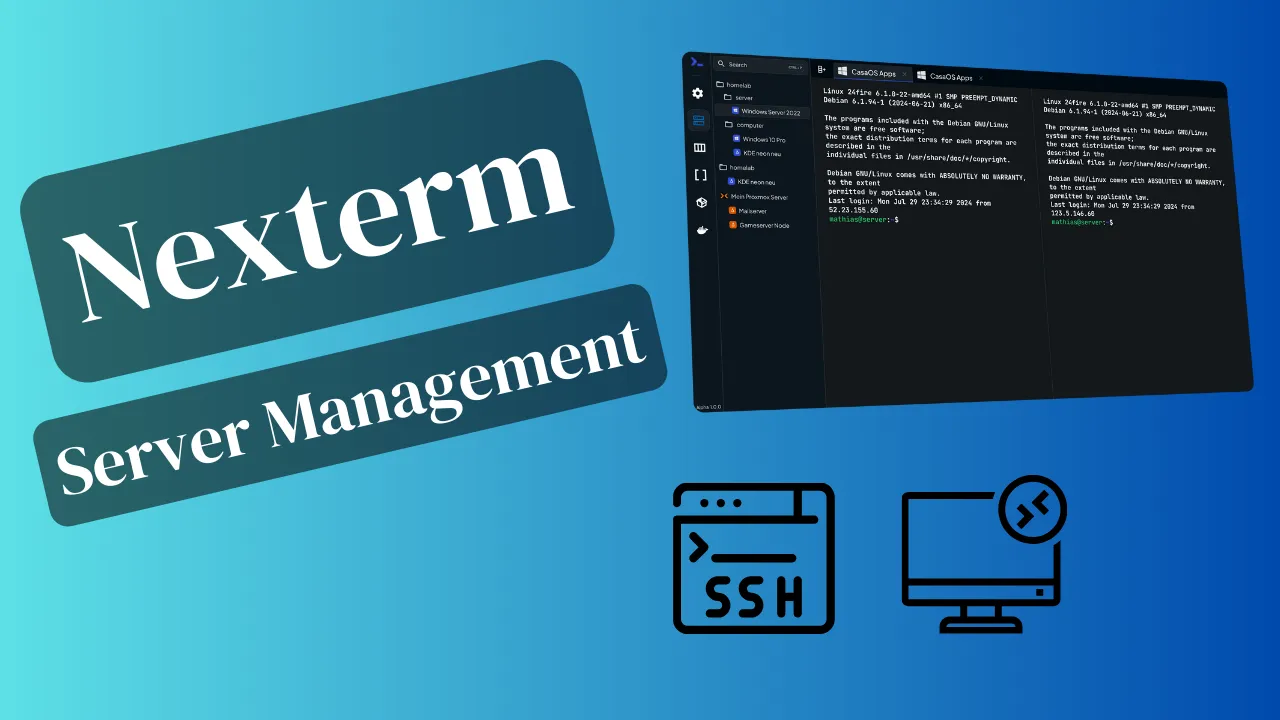
Nexterm is an open-source, self-hosted server management platform for SSH, VNC, RDP, Telnet, SFTP, and FTP connections. At v1.2.2-BETA with nearly 5,000 GitHub stars and an MIT license, it’s past the experimental stage. Production-capable, as long as you back up your data and pin versions. This guide covers a complete Nexterm Docker install using Docker Compose with Traefik reverse proxy, mandatory encryption key setup, and the security hardening you need before opening it to the network.
What is Nexterm?
Nexterm is a web-based server management dashboard that consolidates SSH, VNC, RDP, Telnet, SFTP, and FTP into a single interface. You deploy it as a Docker container, point your browser at it, and manage all your remote connections from one place. It supports OIDC SSO, LDAP, passkeys, 2FA, audit logging, session recordings, and role-based permissions (added in v1.2.2). There are desktop clients for Windows, macOS, and Linux, a mobile app for Android and iOS, and a CLI client (nt) for terminal purists.
If you’re comparing self-hosted server management panels, Nexterm covers more protocols than most alternatives with a smaller resource footprint. It’s also worth looking at alternative SSH management tools like Termix if you want something with a different architecture.
Nexterm features
- Multi-protocol: SSH, VNC, RDP, Telnet, SFTP, FTP, all from one dashboard
- Security: 2FA (TOTP), Passkeys, OIDC SSO, LDAP, server-side encryption at rest, audit logging, role-based permissions, API keys
- Session management: Split view, session recordings, session popout/live sharing, port tunneling, jump hosts
- Dynamic snippets and scripts: Quick commands, scripts, SSH config import (fully implemented since v1.0.3)
- Desktop and mobile apps: Desktop connector (Win/Mac/Linux), mobile app (Android/iOS) for VNC/RDP/SFTP, CLI client (
nt) - Server monitoring and AI: Built-in server monitoring (v1.0.4+), AI integration for terminal assistance
- Infrastructure: Organizations, tags, fuzzy search, internationalization, customizable themes, Nerd Fonts, Proxmox LXC/QEMU management
If you’re building out a home lab, check other self-hosted Docker containers for your home server for more ideas.
How to install Nexterm with Docker Compose
This uses the official nexterm/aio image (all-in-one: server + web client + engine). The old germannewsmaker/nexterm image is deprecated. If you’re migrating from it, see the troubleshooting section below.
Prerequisites
- VPS or home server: Linux (Ubuntu 22.04+ / Debian 12+). Minimum 1 vCPU, 512 MB RAM, 2 GB disk. Use Hetzner, Hostinger, or Vultr for a cheap VPS, or a mini PC as a home server
- Docker and Docker Compose installed. Use Dockge for managing Docker Compose stacks if you want a web UI for your compose files
- Traefik (optional but recommended): For HTTPS reverse proxy with automatic Let’s Encrypt certificates. Set up Traefik as a reverse proxy in Docker or configure Traefik with a free Let’s Encrypt wildcard certificate
- openssl: required to generate the encryption key. Pre-installed on most Linux distros
Lightweight resource usage
Nexterm is lightweight. A 1 vCPU / 512 MB VPS is enough for managing dozens of connections. The AIO image is ~95 MB compressed. You do not need 8 CPUs and 16 GB RAM. That was for something else entirely.
Step 1: Generate your encryption key
Since v1.0.3, Nexterm requires server-side encryption of stored passwords and SSH private keys. The ENCRYPTION_KEY environment variable is mandatory. The container won’t start without it.
openssl rand -hex 32Example output:
a1b2c3d4e5f6a1b2c3d4e5f6a1b2c3d4e5f6a1b2c3d4e5f6a1b2c3d4e5f6a1b2Copy this key. You’ll paste it into the docker-compose file.
Store this key safely
If you lose the ENCRYPTION_KEY, all stored credentials become unrecoverable. Save it in a password manager. Never commit it to git. Docker secrets are also supported via /run/secrets/encryption_key. See how to manage secrets securely with Docker Compose.
Step 2: Docker Compose configuration
Create a docker-compose.yml file:
services:
  nexterm:
    image: nexterm/aio:latest
    environment:
      ENCRYPTION_KEY: "your-generated-key-here"
    volumes:
      - ./nexterm:/app/data
    networks:
      - traefik-net
    restart: always
    labels:
      - "traefik.enable=true"
      - "traefik.http.routers.nexterm.rule=Host(`nexterm.domain.com`)"
      - "traefik.http.routers.nexterm.entrypoints=websecure"
      - "traefik.http.routers.nexterm.tls.certresolver=letsencrypt"
      - "traefik.http.services.nexterm.loadbalancer.server.port=6989"

networks:
  traefik-net:
    external: true
Replace nexterm.domain.com with your actual domain. The traefik-net network must already exist (create it with docker network create traefik-net if needed).
The image is nexterm/aio:latest, the all-in-one package (server + web client + C-based engine) that replaces the deprecated germannewsmaker/nexterm. Paste the key from Step 1 into the ENCRYPTION_KEY variable. The volume ./nexterm:/app/data persists all configuration, connections, and credentials. The Traefik labels route nexterm.domain.com traffic through Traefik with automatic Let’s Encrypt TLS on port 6989.
Docker images
Nexterm distributes three images: nexterm/aio (all-in-one, recommended for most users), nexterm/server (server + web client only, needs external engine), and nexterm/engine (engine only, the C-based connection service). For 95% of setups, aio is the right choice. See the official installation docs.
Step 3: Start the container
docker compose up -dVerify it’s running:
docker compose ps
docker compose logs nexterm
Verify startup
Run docker compose logs nexterm and look for the startup message confirming the server is listening on port 6989. If using Traefik, check the Traefik dashboard. The nexterm route should appear under your entrypoints. docker compose ps should show “Up” status.
If the container exits immediately, the most common cause is a missing or malformed ENCRYPTION_KEY. Check the troubleshooting section below.
Step 4: Access Nexterm and add your first connections
Open https://nexterm.domain.com in your browser (or http://your-server-ip:6989 if you skipped the reverse proxy). The first user you create becomes the admin. After logging in, add connections:
- Click Servers in the sidebar
- Create a folder (e.g., “Production” or “Home Lab”)
- Click the + button to add a new connection
- Select the protocol (SSH, RDP, VNC, etc.), enter the host, port, and credentials
- Save and double-click to connect


Host network vs bridge network: which should you use?
The official Nexterm docs recommend network_mode: host because it enables Wake-on-LAN and localhost connectivity to the Docker host. But host networking means Traefik Docker provider labels won’t work. You’d need a file provider or a different reverse proxy.
For most bitdoze readers with an existing Traefik stack, bridge network (the setup above) is the practical choice. Use host network only if you need Wake-on-LAN or localhost server access and don’t use Traefik’s Docker provider.
What you get: Works with your existing Traefik Docker provider. Automatic TLS via Let’s Encrypt labels. Clean integration with traefik-net.
What you lose: No Wake-on-LAN support. No direct localhost connectivity to the Docker host from inside the container. Target servers must be reachable from the Docker bridge network.
This is the setup in Step 2 above.
What you get: Full access to the host’s network stack. Wake-on-LAN works. Connect to localhost services on the host directly.
What you lose: Traefik Docker labels don’t function. You’ll need to configure the reverse proxy via file provider, or use Nginx/Caddy with static config. Port 6989 is exposed on all host interfaces by default.
services:
  nexterm:
    image: nexterm/aio:latest
    environment:
      ENCRYPTION_KEY: "your-generated-key-here"
    network_mode: host
    restart: always
    volumes:
      - ./nexterm:/app/data
If using host network on a public VPS, restrict port 6989 with UFW/iptables or put it behind a VPN.
Cloudflare Tunnel users
If you’re running Nexterm behind a Cloudflare Tunnel, ensure WebSocket proxying is enabled. Nexterm uses WebSocket for terminal sessions. Without it, you’ll get a connection that immediately drops. See the official reverse proxy docs.
Hardening and production notes
Beta software
Nexterm is still in beta (v1.2.x). Always back up your data directory before upgrading. Breaking changes between versions are possible.
Back up before upgrades. Nexterm is beta. Data loss is possible between major version jumps. Always back up the ./nexterm data directory before pulling a new image:
docker compose down
cp -r ./nexterm ./nexterm-backup-$(date +%Y%m%d)
docker compose pull
docker compose up -d
ENCRYPTION_KEY management. Store the key in a password manager. Never commit it to git or paste it in public forums. If you lose it, all stored credentials become unrecoverable. Docker secrets are supported. Mount at /run/secrets/encryption_key instead of using the environment variable. Learn more about how to manage secrets securely with Docker Compose.
Firewall. If you’re using host network mode on a public VPS, port 6989 is exposed directly on all interfaces. Use UFW or iptables to restrict access, or put Nexterm behind a reverse proxy. If you’re running on Hetzner, read how to secure your Docker server. For broader VPS hardening, secure your VPS with CrowdSec.
Resource usage. Nexterm typically runs under 200 MB RAM. The AIO image is ~95 MB compressed. It doesn’t need much. A small VPS handles dozens of connections.
Regular updates. Check GitHub releases periodically. Use nexterm/aio:latest to auto-update on pull, or pin to a specific version like nexterm/aio:1.2.2-BETA for stability.
Troubleshooting common issues
Container won't start (missing ENCRYPTION_KEY)
Symptom: Container exits immediately after docker compose up -d.
Fix: Ensure ENCRYPTION_KEY is set in the environment section of your docker-compose file. Check logs:
docker compose logs nextermIf you see encryption-related errors, regenerate the key with openssl rand -hex 32 and restart.
Verify: docker compose ps should show “Up” status after fixing.
Can't connect via SSH from Nexterm
Symptom: Connection timeout or refused when trying to SSH to a target server.
Fix: If using bridge network, verify the target is reachable from the container:
docker compose exec nexterm ping target-ipCheck firewall rules on the target server. If the target is on a different network, the Docker bridge may not have a route to it.
Verify: Check Nexterm logs for engine connection errors.
RDP/VNC shows a black screen
Symptom: Connects to the remote server but displays a black screen.
Fix: For RDP, try adjusting the security method. Since v1.2.2, Nexterm supports NLA and Kerberos configuration. For VNC, verify the VNC server is running and accepting connections on the target. Some VNC servers only accept connections from localhost by default.
Reverse proxy WebSocket errors
Symptom: Terminal connects but immediately disconnects.
Fix: Nexterm requires WebSocket support. If using Nginx as your reverse proxy, add these headers:
proxy_set_header Upgrade $http_upgrade;
proxy_set_header Connection "upgrade";
For Cloudflare, enable WebSocket proxying in the dashboard. See the official reverse proxy docs.
Migrating from the old germannewsmaker/nexterm image
Symptom: Switching to nexterm/aio:latest fails or data seems incompatible.
Fix: Back up your ./nexterm data directory first. Swap the image in docker-compose:
# old (deprecated)
image: germannewsmaker/nexterm:1.0.1-OPEN-PREVIEW
# new
image: nexterm/aio:latest
If the container fails to start after the swap (encryption migration issues from pre-1.0.3 data), start fresh: delete the ./nexterm directory and re-add your connections manually. The v1.2.1-BETA release notes warn that migration from very old versions may be unstable.
Conclusion
Nexterm at v1.2.2-BETA is a capable, lightweight, self-hosted server management platform. The Nexterm Docker install with Docker Compose gives you SSH, VNC, RDP, Telnet, and SFTP from a single web dashboard, with proper encryption at rest, 2FA/passkey support, and session recording. It runs comfortably on a small VPS and integrates well with Traefik for HTTPS access.
If you’re exploring the space, check self-hosted server management panels for a broader comparison, or look at alternative SSH management tools like Termix for different trade-offs.
Visit Nexterm Docs