How to Install Outline Wiki on Docker: Complete 2025 Guide
Learn how to install Outline Wiki with Docker Compose in 2025. Self-hosted Notion alternative with Slack/OIDC auth, SMTP, file storage & troubleshooting tips.
 Dragos17 min read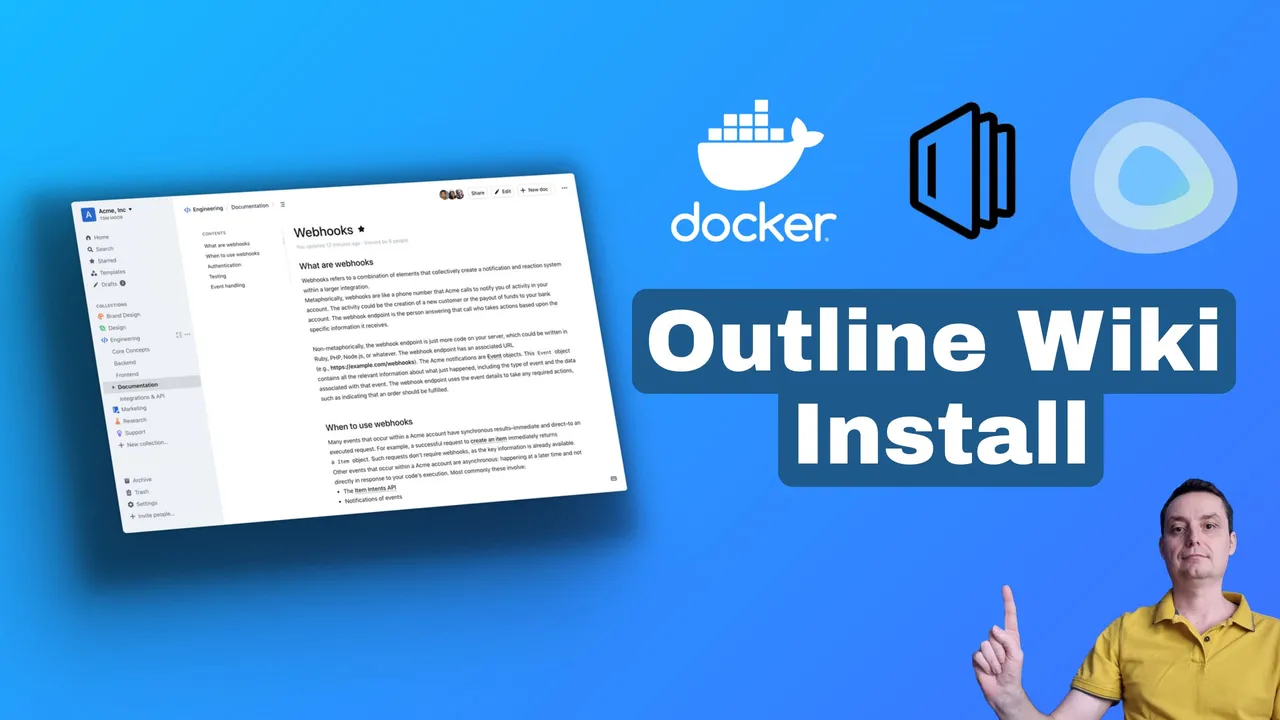
If you want to install Outline Wiki on Docker, this guide covers it. Outline is a self-hosted Notion alternative: a knowledge base and wiki for docs, specs, meeting notes, and support answers on infrastructure you control. It runs on PostgreSQL and Redis, supports local file storage, and has ~39.8k GitHub stars with the latest release at v1.9.0.
This guide walks through a complete Docker Compose setup: Slack or OIDC authentication, SMTP for email notifications, local file storage, Cloudflare Tunnels, troubleshooting, and backups. If you’re looking at other self-hosted note-taking tools, check Docmost, another self-hosted wiki or Memos for lighter note-taking.
Updated July 2025
This guide has been updated for Outline v1.9.0, Postgres 18, Redis 7, and Docker Compose V2. Previous versions had several breaking issues (Postgres volume path, deprecated Compose syntax) that are now fixed.
What is Outline Wiki? A self-hosted Notion alternative
Outline is a knowledge base and documentation platform built for teams. It focuses on one thing: organizing and sharing internal docs. It doesn’t try to be an all-in-one workspace like Notion.
- Fast collaborative editor with markdown support, slash commands, and interactive embeds
- Real-time collaboration (multiple people editing the same document simultaneously)
- 17+ languages with RTL (right-to-left) text support
- Detailed user permissions and collections for organizing docs by team or topic
- Desktop apps for macOS and Windows, plus a PWA you can install on iOS and Android home screens
- Dark mode
A few things to know before committing:
- License: Outline uses the BSL 1.1 license, source-available but not fully open-source. For most self-hosted teams this doesn’t matter, but it’s worth knowing if compliance is a concern.
- No email+password auth by design. Outline requires an SSO provider (Slack, OIDC, Google, Microsoft, GitHub, Discord, GitLab, SAML, Passkeys, or email magic links). This is deliberate, not a missing feature.
- No native mobile apps. There’s a PWA for iOS/Android and desktop apps for macOS/Windows, but no App Store or Play Store listing.
How does it compare to Notion? Outline is narrower in scope (docs and knowledge base only), simpler to use, and you can self-host it. Notion has databases, project management, and a much wider feature set; you’re locked into their cloud.
Prerequisites for installing Outline Wiki on Docker
Before you start, have these in place:
- A VPS or mini PC (minimum 1 CPU / 512MB RAM for light testing; realistic minimum 2 vCPU / 2GB RAM for a team of 5+)
- Docker and Docker Compose V2 installed (
docker compose versionshould work) - A domain or subdomain pointed at your server (e.g.
docs.yourdomain.com) - A reverse proxy (Cloudflare Tunnels, Traefik, Nginx, or Caddy)
- An authentication provider account (Slack workspace is easiest, or an OIDC provider like Authentik, Keycloak, Authelia)
- A way to manage your stacks (Dockge for Docker management, Dokploy as an alternative deployment panel, or Coolify self-hosted PaaS)
VPS cost
A Hetzner CX22 (2 vCPU, 4GB RAM, 40GB SSD) costs ~€5/month and is plenty for a small team running Outline. Hostinger VPS is another budget option. If you’d rather run it at home, an ASUS Mini PC or any mini PC as home server works fine too.
What gets installed: Outline (latest or pinned), PostgreSQL 18, and Redis 7.
For a comparison of Docker management panels, see the best self-hosted server panels. If you prefer Traefik over Cloudflare Tunnels, I have a full guide on Traefik as a reverse proxy in Docker.
Step 1: Set up Slack authentication for Outline Wiki
Slack is free and the simplest auth option for teams that already use it. Here’s how to set it up.
- Go to Slack API Apps and click Create New App → From scratch.
- Name it (e.g. “Outline Docs”) and select your workspace.
- Under OAuth & Permissions, add the redirect URL:
https://docs.yourdomain.com/auth/slack.callback - Under Basic Information, copy the Client ID and Client Secret.

The required scopes are identity.avatar, identity.basic, identity.email, and identity.team. Slack requests these by default for Sign in with Slack.
Not using Slack?
Skip to the OIDC authentication section below. Outline has native built-in OIDC support that works with Authentik, Keycloak, Authelia, Gitea, and any standards-compliant provider. No separate oidc-server image needed.
Step 2: Configure SMTP for Outline Wiki (email notifications and invites)
SMTP is required
Without SMTP configured, user invitations, email notifications, email magic link sign-in, and password reset flows will silently fail. Set this up before inviting your team.
SMTP is a quick addition. You need these environment variables:
| Variable | Example | Notes |
|---|---|---|
SMTP_HOST |
smtp.mailgun.org |
Your SMTP server hostname |
SMTP_PORT |
465 |
Usually 465 (SSL) or 587 (TLS) |
SMTP_USERNAME |
postmaster@mg.yourdomain.com |
SMTP credentials |
SMTP_PASSWORD |
your_smtp_password |
SMTP credentials |
SMTP_FROM_EMAIL |
Outline <noreply@yourdomain.com> |
From address shown in emails |
SMTP_SECURE |
true |
Default true; set to false for local/testing |
If you use a known provider (Mailgun, SendGrid, SES, Gmail), you can replace SMTP_HOST/SMTP_PORT with SMTP_SERVICE=mailgun (or sendgrid, ses, gmail).
The actual SMTP variables go into the docker.env file shown in Step 3. I’ve included them as commented-out lines you can uncomment.
Step 3: Outline Wiki Docker Compose configuration
Here’s the complete, updated docker-compose.yml. Key changes from older versions: no version field (deprecated in Compose V2), pinned Postgres 18 and Redis 7 Alpine images, fixed Postgres volume path, healthchecks with condition: service_healthy, and expose for internal services.
services:
  outline:
    image: docker.getoutline.com/outlinewiki/outline:latest
    env_file: ./docker.env
    ports:
      - "3000:3000"
    volumes:
      - ./storage-data:/var/lib/outline/data
    depends_on:
      postgres:
        condition: service_healthy
      redis:
        condition: service_healthy
    restart: unless-stopped

  redis:
    image: redis:7-alpine
    env_file: ./docker.env
    expose:
      - "6379"
    healthcheck:
      test: ["CMD", "redis-cli", "ping"]
      interval: 10s
      timeout: 30s
      retries: 3
    restart: unless-stopped

  postgres:
    image: postgres:18
    env_file: ./docker.env
    expose:
      - "5432"
    volumes:
      - ./database-data:/var/lib/postgresql
    healthcheck:
      test: ["CMD", "pg_isready", "-d", "outline", "-U", "user"]
      interval: 30s
      timeout: 20s
      retries: 3
    environment:
      POSTGRES_USER: user
      POSTGRES_PASSWORD: pass
      POSTGRES_DB: outline
      PGSSLMODE: disable
    restart: unless-stopped
What changed from the old version:
- Removed
version: "3.2"(deprecated in Docker Compose V2) - Changed Postgres volume from
/var/lib/postgresql/datato/var/lib/postgresql(Postgres 18 breaking change) - Pinned
postgres:18andredis:7-alpineinstead of unpinned:latest - Added
condition: service_healthytodepends_on, so Outline waits for Postgres and Redis to be ready - Changed
portstoexposefor internal services (Redis and Postgres don’t need host port mapping) - Added
PGSSLMODE: disableto Postgres environment - Added
env_file: ./docker.envto all services (shared env file pattern from official docs) - Removed
container_nameandhostname(Docker’s built-in DNS handles service discovery) - Removed the
redis.confvolume mount (not needed for basic Outline usage) - Added
restart: unless-stoppedto Postgres and Redis
The docker.env file explained
Create a docker.env file in the same directory as your docker-compose.yml:
# PostgreSQL
POSTGRES_USER=user
POSTGRES_PASSWORD=pass
POSTGRES_DB=outline
PGSSLMODE=disable

# Outline
URL=https://docs.yourdomain.com
SECRET_KEY=generate_with_openssl_rand_hex_32
UTILS_SECRET=generate_with_openssl_rand_hex_32
PORT=3000

# Database connection
DATABASE_URL=postgres://user:pass@postgres:5432/outline
REDIS_URL=redis://redis:6379

# File storage
FILE_STORAGE=local
FILE_STORAGE_LOCAL_ROOT_DIR=/var/lib/outline/data
FILE_STORAGE_UPLOAD_MAX_SIZE=26214400

# Auth — Slack
SLACK_CLIENT_ID=your_slack_client_id
SLACK_CLIENT_SECRET=your_slack_client_secret

# Auth — OIDC (alternative to Slack, pick one)
# OIDC_CLIENT_ID=your_oidc_client_id
# OIDC_CLIENT_SECRET=your_oidc_client_secret
# OIDC_AUTH_URI=https://auth.yourdomain.com/application/o/authorize/
# OIDC_TOKEN_URI=https://auth.yourdomain.com/application/o/token/
# OIDC_USERINFO_URI=https://auth.yourdomain.com/application/o/userinfo/
# OIDC_USERNAME_CLAIM=preferred_username
# OIDC_DISPLAY_NAME=SSO Login
# OIDC_SCOPES=openid profile email

# SMTP (needed for invites and email notifications)
# SMTP_HOST=smtp.example.com
# SMTP_PORT=465
# SMTP_USERNAME=your_username
# SMTP_PASSWORD=your_password
# SMTP_FROM_EMAIL=Outline <noreply@yourdomain.com>
# SMTP_SECURE=true

# Optional but recommended
FORCE_HTTPS=true
# RATE_LIMITER_MULTIPLIER=1.0
# LOG_LEVEL=debug  # only for troubleshooting
Generate both secrets with:
openssl rand -hex 32SECRET_KEY is critical
If you lose SECRET_KEY, all encrypted data (tokens, sessions, integrations) is destroyed. There’s a recovery script (node ./build/server/scripts/reset-encrypted-data.js) but it wipes encrypted data. Back up your docker.env file alongside your database.
Key variables explained:
URL: must match your public domain exactly (includinghttps://). Outline uses this for callback URLs and asset links.FORCE_HTTPS: set totruewhen behind a reverse proxy that handles TLS. Set tofalsefor local testing without TLS. Getting this wrong causes redirect loops.DATABASE_URL: the hostname (postgres) must match the service name indocker-compose.yml, notlocalhost.RATE_LIMITER_MULTIPLIER: float value, default 1.0. Increase for larger teams hitting rate limits.LOG_LEVEL=debug: enable verbose logging temporarily when troubleshooting startup issues.
For more on Docker Compose environment management, see Docker environment variables in Compose and Docker Compose secrets management.
PostgreSQL and Redis service configuration
Postgres 18 is pinned because the Docker image changed its internal data directory. Using the old /var/lib/postgresql/data path with Postgres 18+ causes: Error: Postgres detected data in /var/lib/postgresql/data (unused mount/volume). The fix is using /var/lib/postgresql without the /data suffix.
Redis 7 Alpine is a small image (~10MB) that works with zero configuration for Outline. No custom redis.conf needed.
expose vs ports: Internal services (Postgres, Redis) use expose. They’re accessible to other containers on the Docker network but not mapped to host ports. Only Outline’s port 3000 is exposed to the host. This is more secure than mapping all three services to host ports.
Step 4: Deploy and verify your Outline Wiki installation
Deploy with:
docker compose up -dCheck all containers are running
docker compose psAll three services should show “Up” and healthy:
NAME              STATUS                    PORTS
outline-app       Up (healthy)              0.0.0.0:3000->3000/tcp
outline-postgres  Up (healthy)              5432/tcp
outline-redis     Up (healthy)              6379/tcp
Check Outline logs for startup and migration messages:
docker compose logs outlineLook for Server started on port 3000 and migration messages. If you see connection errors to Postgres or Redis, check that the service names in DATABASE_URL and REDIS_URL match your docker-compose.yml.
Fix file upload permissions
Outline runs as UID 1001 inside the container. Without the right permissions, image uploads fail silently:
chown 1001 ./storage-dataVerify: open Outline in your browser, create a document, and upload an image. If it works, you’re set.
Test WebSocket connectivity
Open the same document in two browser tabs. Type in one tab. Changes should appear in the other within a second. This confirms WebSocket connections work through your reverse proxy.
If real-time sync doesn’t work, your reverse proxy likely isn’t forwarding WebSocket upgrade headers. See the troubleshooting section below.
Optional: Set up OIDC authentication for Outline Wiki
OIDC is recommended for self-hosted setups
OIDC is the most flexible authentication option for self-hosted Outline. Works with Authentik, Keycloak, Authelia, Gitea, and any standards-compliant OIDC provider. No separate oidc-server image needed. It’s built in.
You have two ways to configure OIDC: manual endpoints or automatic discovery via issuer URL.
Set each endpoint explicitly in your docker.env:
OIDC_CLIENT_ID=your_oidc_client_id
OIDC_CLIENT_SECRET=your_oidc_client_secret
OIDC_AUTH_URI=https://auth.yourdomain.com/application/o/authorize/
OIDC_TOKEN_URI=https://auth.yourdomain.com/application/o/token/
OIDC_USERINFO_URI=https://auth.yourdomain.com/application/o/userinfo/
OIDC_USERNAME_CLAIM=preferred_username
OIDC_DISPLAY_NAME=SSO Login
OIDC_SCOPES=openid profile email
The callback URL for your OIDC provider is:
https://docs.yourdomain.com/auth/oidc.callbackIf your provider supports auto-discovery (Authentik, Keycloak, Authelia do), you only need the issuer URL:
OIDC_CLIENT_ID=your_oidc_client_id
OIDC_CLIENT_SECRET=your_oidc_client_secret
OIDC_ISSUER_URL=https://auth.yourdomain.com/application/o/your-app/
OIDC_DISPLAY_NAME=SSO Login
OIDC_SCOPES=openid profile email
Outline fetches the endpoints automatically from {OIDC_ISSUER_URL}/.well-known/openid-configuration.
Other auth providers Outline supports: Discord, GitLab, GitHub, Google Workspace, Microsoft, SAML, Passkeys (biometric/security keys), and email magic links. Outline will never have email+password auth. This is a deliberate design decision.
After enabling OIDC, restart Outline (docker compose restart outline) and test the login flow. The OIDC button should appear on the login page.
Optional: Configure Cloudflare Tunnels for Outline Wiki
To expose Outline via Cloudflare Tunnels:
- Go to Cloudflare dashboard → Access → Tunnels
- Select your tunnel → Configure → Public Hostname → Add a public hostname
- Set the domain to your subdomain (e.g.
docs.yourdomain.com) - Set the service to
http://localhost:3000(or your mapped port)
Disable Cloudflare Rocket Loader
Cloudflare Rocket Loader must be disabled for your Outline subdomain. It injects scripts that break Outline’s client-side JavaScript rendering. Go to Speed → Optimization → Rocket Loader → set to Off for your Outline domain. The official Outline docs explicitly warn about this.
Set FORCE_HTTPS=true in your docker.env when using Cloudflare Tunnels (it handles TLS at the edge).
If you prefer self-hosted tunnel management, check out Pangolin as a self-hosted Cloudflare Tunnels alternative.
Troubleshooting common Outline Wiki Docker issues
HTTPS redirect loops
Symptom: Browser shows ERR_TOO_MANY_REDIRECTS or the page keeps reloading.
Fix: If your reverse proxy terminates TLS and forwards HTTP to Outline, FORCE_HTTPS=true can cause redirect loops once the browser caches HSTS headers. Set FORCE_HTTPS=false in docker.env and clear your browser’s HSTS cache: in Chrome, go to chrome://net-internals/#hsts, query your domain, and delete it.
Cloudflare Rocket Loader conflicts
Symptom: Outline loads but buttons don’t work, the editor is broken, or JavaScript errors appear in the browser console.
Fix: Disable Rocket Loader in Cloudflare dashboard: Speed → Optimization → Rocket Loader → set to Off for your Outline subdomain.
File upload permission denied
Symptom: Uploading images or files in a document fails — either silently or with a permission error in logs.
Fix: Run chown 1001 ./storage-data in your Outline stack directory. The Node.js process runs as UID 1001 inside the container and needs write access to the mounted volume.
WebSocket / collaborative editing not working
Symptom: Real-time collaboration doesn’t sync between browser tabs or users.
Fix: Your reverse proxy needs to support WebSocket upgrade. For Cloudflare Tunnels, WebSockets work by default. For Nginx, ensure proxy_set_header Upgrade $http_upgrade and proxy_set_header Connection "upgrade" are set. For Traefik, WebSocket support is built in — verify your router config.
Database connection errors
Symptom: Outline fails to start with connection refused or authentication errors against Postgres.
Fix: Check three things:
DATABASE_URLhostname must match the Postgres service name indocker-compose.yml(postgres, notlocalhostoroutline-postgres)PGSSLMODE=disablemust be set in both the Outline and Postgres environments- Verify Postgres healthcheck is passing:
docker compose psshould show the Postgres container as “healthy”
SECRET_KEY format errors
Symptom: Outline fails to start with a secret key validation error.
Fix: SECRET_KEY must be exactly 64 hex characters generated with openssl rand -hex 32. Do not use a passphrase, a URL, or any arbitrary string. Same for UTILS_SECRET.
DNS lookup not allowed
Symptom: Outline can’t reach your OIDC provider, SMTP server, or other services on a local/private network. Logs show DNS lookup or connection errors to private IPs.
Fix: Set ALLOWED_PRIVATE_IP_ADDRESSES in docker.env with comma-separated IPs of the services Outline needs to reach. For example: ALLOWED_PRIVATE_IP_ADDRESSES=10.0.0.5,192.168.1.100. This is a security measure that blocks SSRF attacks by default.
For more verbose logging during troubleshooting, temporarily add LOG_LEVEL=debug to your docker.env and restart the container.
How to back up and update Outline Wiki on Docker
Backing up your database and files
Three things need regular backups:
1. Postgres database:
docker exec outline-postgres pg_dump -U user outline > backup_$(date +%F).sql2. File storage directory:
cp -r ./storage-data ./storage-data-backup-$(date +%F)3. docker.env file:
This contains SECRET_KEY and UTILS_SECRET. Without SECRET_KEY, all encrypted data in the database is unrecoverable. Back it up alongside your database dump.
For a more robust backup strategy, you can push database dumps and file storage to S3-compatible storage. See how to clean up Docker disk space if your backup volumes are eating disk.
Updating Outline Wiki to the latest version
The update process:
# 1. Back up first
docker exec outline-postgres pg_dump -U user outline > backup_$(date +%F).sql

# 2. Pull new images
docker compose pull

# 3. Restart with new images
docker compose up -d

# 4. Check logs for migration output
docker compose logs -f outline
Migrations run automatically on container startup. There’s no manual migration step — but this also means migrations are irreversible. If an update breaks something, you need a database backup to roll back.
Version pinning for production: Instead of :latest, use a specific tag like outline:1.9.0. This lets you control when updates happen and prevents surprise breakage on redeploy.
image: docker.getoutline.com/outlinewiki/outline:1.9.0For a detailed guide on updating Docker Compose containers, see how to update Docker Compose containers.
Migrations are irreversible
Migrations run automatically on startup and cannot be reversed. Always back up your database before updating Outline.
Final thoughts on self-hosting Outline Wiki
Outline has matured significantly — v1.9.0 with ~39.8k GitHub stars, native OIDC support, desktop apps, a PWA for mobile, and a polished collaborative editor. It’s one of the better self-hosted documentation platforms if you want something focused and clean instead of Notion’s everything-kitchen-sink approach.
Key takeaways from this setup:
- Pin your image versions in production to avoid surprise breakage on redeploy
- Back up
docker.envalongside your database — losingSECRET_KEYmeans losing all encrypted data - Set up SMTP early — without it, invites and notifications silently don’t work
- Pin Postgres to 18 and use the
/var/lib/postgresqlvolume path (not/var/lib/postgresql/data) - Use
docker compose(V2 plugin), notdocker-compose(deprecated)
Outline uses the BSL 1.1 license — source-available but not fully open-source. For most self-hosted teams this is fine, but it’s worth knowing.
Note: The video above was recorded with an older version. The steps are similar but some commands and configurations have been updated in this guide.
For more self-hosted Docker apps, check out the best self-hosted Docker apps for business and self-hosted Docker containers for your home server.